
Supabase's default auth emails are plain: a short line of text and a link. They work, but they don't look like your product. And since June 3, 2026, new free-tier projects on Supabase's default email provider can no longer edit these templates. Existing projects, paid plans, and projects with their own SMTP are not affected.
This guide shows two things. First, which Supabase auth emails you can customize and where. Second, a route that lets you design them visually: build the email in Brevo's editor, starting from a free gallery design, and send it through Supabase's Send Email Hook.
You need a Supabase project and a free Brevo account. Some comfort with a short Edge Function helps.
Table of Contents
At a glance
Can I use a Brevo template for Supabase auth emails? Yes, with the Send Email Hook and the Brevo API.
Why the API and not SMTP? The API sends a saved template by ID. SMTP only relays an email that Supabase has already built.
What do I need? A free Brevo account with a verified sender, an API key, and a Supabase project that can run Edge Functions.
Where do I find a design? In Brevo's template gallery: 40+ responsive templates, free with an account.
What Supabase auth email templates cover
Supabase Auth sends six authentication emails. When you use the Send Email Hook, each one arrives with an email_action_type value that tells you which email to send (Supabase docs).
The six authentication emails
| When it is sent | email_action_type | |
|---|---|---|
| Confirm signup | A new user signs up with email | signup |
| Invite user | You invite a user from the dashboard or API | invite |
| Magic link / OTP | A user signs in without a password | magiclink |
| Change email address | A user changes their email | email_change |
| Reset password | A user asks for a password reset | recovery |
| Reauthentication | A sensitive action needs a fresh code | reauthentication |
Security notification emails
Supabase can also notify users when their password, email, or phone number changes, when a sign-in method is linked or removed, or when a verification method is added or removed. These are only sent if you enable them at the project level, and the hook receives them as separate action types such as password_changed_notification.
Where to edit your Supabase email templates
On a hosted project, open Authentication > Emails in the dashboard and edit the subject and HTML of each email. Templates use Go template variables such as {{ .ConfirmationURL }}, {{ .Token }} (the 6-digit code), {{ .Email }}, and {{ .SiteURL }}. Locally or self-hosted, you set the same templates in supabase/config.toml and point to HTML files. You can also push them through the Management API.
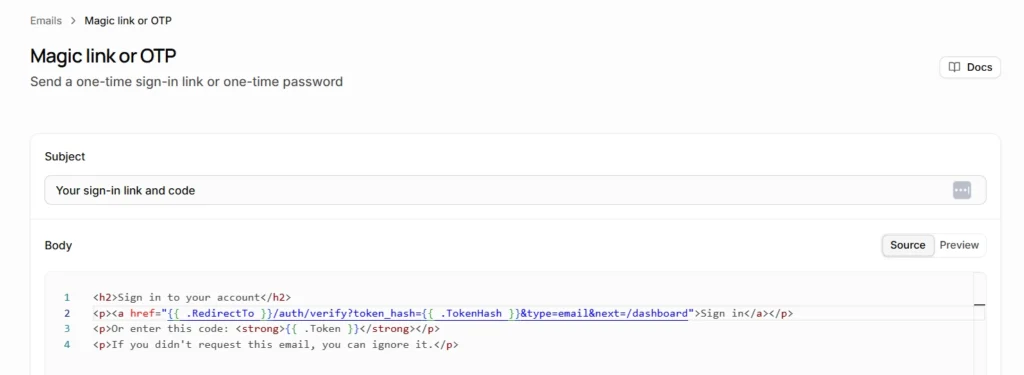
This works well for light edits, but you write the HTML by hand and can't preview it in an email editor. That's where the Brevo route helps. If you only need magic links, OTP codes, or confirmation emails with custom SMTP, our guide to Supabase auth emails covers that setup.
Why design auth emails in Brevo
Supabase's Send Email Hook replaces its built-in sending. Instead of building the email, Supabase calls your function with the user and a token. Your function then asks Brevo to send a template you designed in the drag-and-drop editor.
Supabase Auth → Send Email Hook → Edge Function → Brevo API → your user's inbox
You use the API rather than SMTP because the API accepts a template ID plus parameters. With SMTP, Supabase builds the HTML, so your Brevo design is never used. Brevo also notes that Supabase Edge Functions can't open outgoing connections on ports 25 and 587, which is another reason to use the API. The hook is available on the Free and Pro plans, and HTTP hooks should finish within 5 seconds (Supabase docs).
Start from a gallery design
A good auth email is short. Supabase's own deliverability advice is to keep subjects short, use few images and links, and avoid promotional content, taglines, and signatures. Pick a simple, single-column design, such as a notification, onboarding, or welcome layout, and strip out anything that looks like marketing: extra images, banners, social icons, and promotional blocks. Keep a logo, a short line of text, and one clear area for the code.
To turn a gallery design into a template you can call from the API:
- In Brevo, go to Transactional > Templates and click New Template.
- Set the template name, sender, and subject.
- Click Add content > Pre-built templates, preview a design, and click Use template.
- Edit the design, then Save & Activate. The template must be active to be sent by the API.
- Note the template ID. You'll need it in the function.
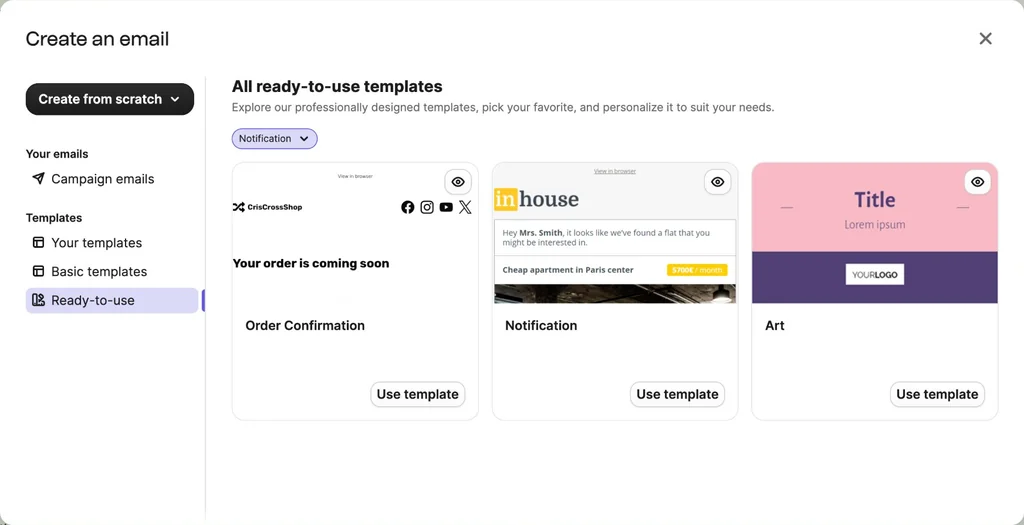
Source: Brevo help center: Create an email template and Brevo's developer guide. Make one template per email you want to customize.
Make it code-first
Design the email around a 6-digit code, not a button. Email links can be rewritten by click tracking, and security scanners sometimes open links before the user does, which can use up a one-time link. Supabase documents the code route as a fix for this: send {{ .Token }} and verify it with supabase.auth.verifyOtp (Supabase docs).
In your Brevo template, make the code the main element using the placeholder {{params.token}}. Parameters only work in templates built with Brevo's New Template Language. On your app side, verify the code like this:
const { data, error } = await supabase.auth.verifyOtp({
email: "[email protected]",
token: "123456",
type: "email",
});
The type depends on the flow (for example signup or recovery), so check the Supabase docs for the one you use.
Send it with the Send Email Hook
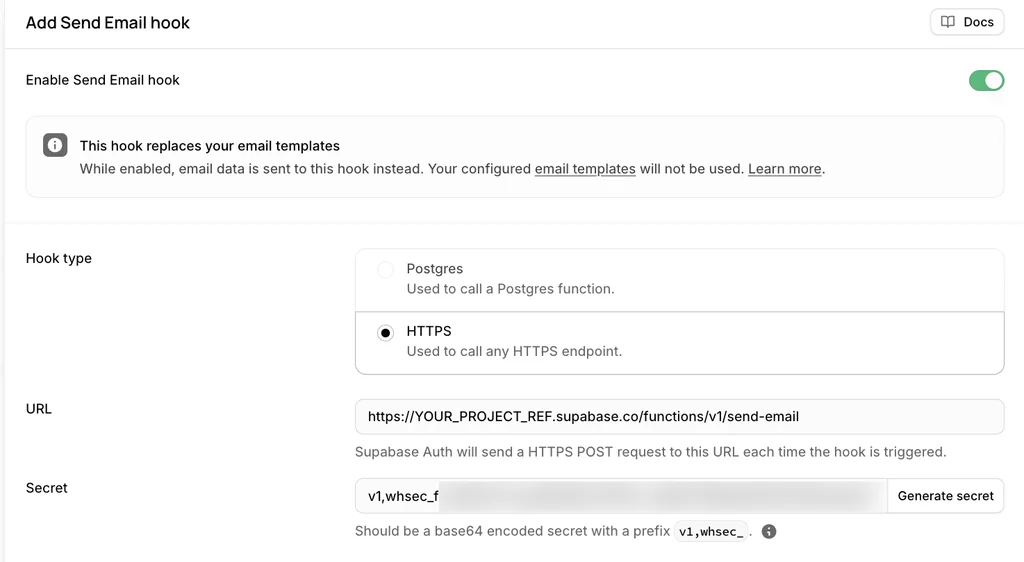
The full Edge Function, secrets, and hook setup are already covered in our guide on how to send emails from Supabase Edge Functions with Brevo (see Method 3, Option B). Follow it to deploy the function and enable the hook under Authentication > Hooks. Two things change for this design:
- Map each
email_action_typeto the ID of the Brevo template you built, for examplesignupandrecovery. - Pass the code in the request params:
params: { token: email_data.token }. Your template reads it as{{params.token}}.
The function calls POST https://api.brevo.com/v3/smtp/email with your API key in the api-key header, a templateId, and the params (Brevo API docs). The part that changes looks like this (replace the IDs with your own):
const TEMPLATES: Record<string, number> = {
signup: 12,
recovery: 13,
magiclink: 14,
};
await fetch("https://api.brevo.com/v3/smtp/email", {
method: "POST",
headers: {
"api-key": BREVO_API_KEY,
"content-type": "application/json",
},
body: JSON.stringify({
to: [{ email: user.email }],
templateId: TEMPLATES[email_data.email_action_type],
params: { token: email_data.token },
}),
});
Deploy it with supabase functions deploy send-email --no-verify-jwt, and verify the hook signature with the secret Supabase generates for you.
Keep a link as a backup
Some users prefer a button. You can add one as a secondary option by passing a link param built from the token hash, using the format in Supabase's example: ${SUPABASE_URL}/auth/v1/verify?token=${token_hash}&type=${email_action_type}&redirect_to=${redirect_to}. Keep the code as the main element. Brevo tracks clicks in transactional emails, so links may be rewritten, which is one more reason the code should lead.
Troubleshooting
- Params show up empty. The template likely isn't built with the New Template Language, or the param name doesn't match.
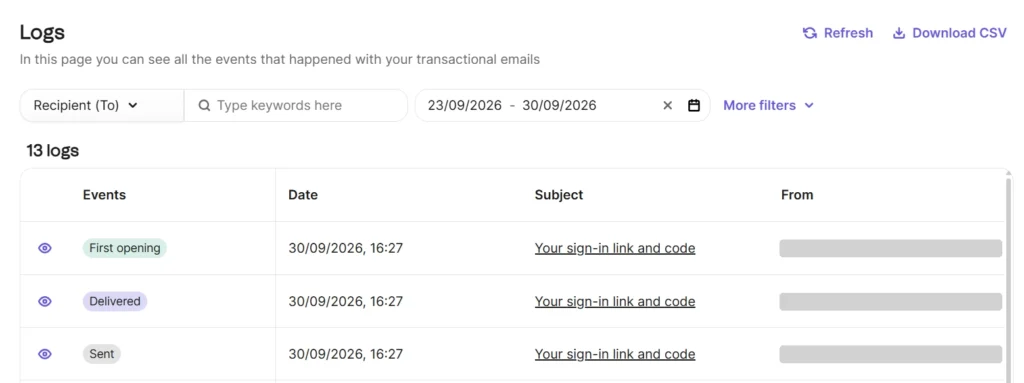
- Nothing arrives. Check that the template is saved and activated, the sender is verified, and your Brevo account is approved for sending. Read the function logs in the Supabase dashboard.
- The hook times out. HTTP hooks should complete within 5 seconds. Keep the function to a single Brevo call.
- Emails land in spam. Authenticate your domain with SPF, DKIM, and DMARC, and use a separate domain for auth and marketing emails, as Supabase advises. Our email deliverability best practices go further.
Ready to design your own? Brevo's free plan includes 300 emails per day, the template gallery, and API access, with no credit card needed. Create your account and build your first auth email today.