
Supabase handles authentication out of the box, but its built-in email service is not meant for production. It sends at most 2 messages per hour, and only to members of your project team. As soon as real users sign up, you need your own email provider.
This tutorial shows how to send emails from Supabase with Brevo, in three ways:
- From an Edge Function, for transactional emails like receipts or notifications.
- Automatically from a database event, like a welcome email when a new user is created.
- For Supabase Auth emails, either with Brevo SMTP (quick) or with the Send Email Hook and Brevo templates (fully branded).
All code below is TypeScript for the Deno runtime that Edge Functions use. You need a Supabase project and a free Brevo account, which includes 300 emails per day with full API access.
The information in this article was last updated on October 5, 2026.
Table of Contents
- Before you start: Get your Brevo credentials
- Method 1: Send an email from a Supabase Edge Function
- Method 2: Send a welcome email from a database webhook
- Method 3: Send Supabase Auth emails through Brevo
- Test without sending real emails
- Common errors and how to fix them
- Supabase and Brevo: What to set up first
Before you start: Get your Brevo credentials
You need two things from Brevo:
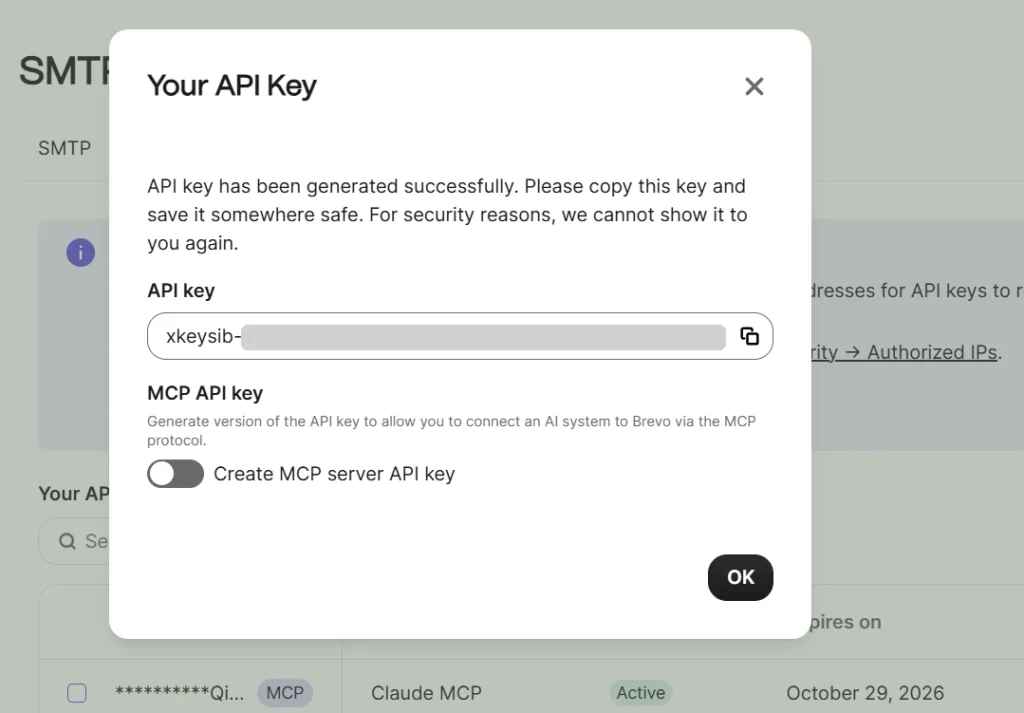
- An API key. In Brevo, go to Settings > SMTP & API, open the API keys & MCP tab, and click Generate API key. Give the key a name, then copy it right away: it starts with xkeysib-, and Brevo only shows it once.
- A verified sender. Add your sender email in Brevo and authenticate your domain with SPF, DKIM, and DMARC. If your domain isn't authenticated, Brevo sends from a brevosend.com address instead of yours.
Good to know: Our guide to SPF, DKIM, and DMARC covers the setup, and our email deliverability best practices help your emails reach the inbox.
Method 1: Send an email from a Supabase Edge Function
This is the core pattern: a server-side function that calls the Brevo API. Your API key stays in Supabase secrets and never reaches the browser.
Step 1: Store your Brevo API key as a secret
With the Supabase CLI, run:
supabase secrets set BREVO_API_KEY=xkeysib-your-key [email protected]
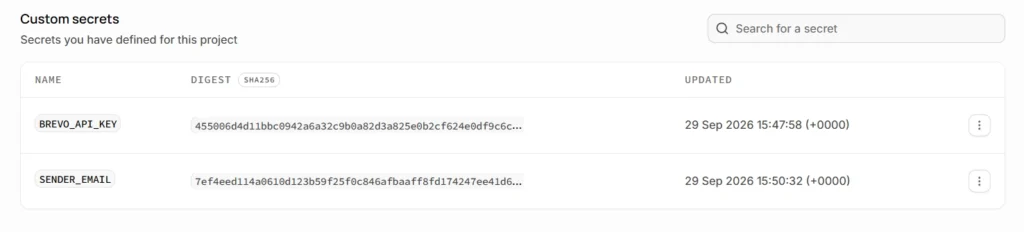
You can also add them in the dashboard on the Edge Function Secrets page: enter each name and value (click Add another for extra secrets), then save. Supabase only shows a SHA256 digest of each value afterward. For local development, put the same values in supabase/functions/.env and add that file to .gitignore.
Step 2: Create the function
Run supabase functions new send-email. This creates supabase/functions/send-email/index.ts. Replace its content with:
const BREVO_API_KEY = Deno.env.get("BREVO_API_KEY")!;
const SENDER_EMAIL = Deno.env.get("SENDER_EMAIL")!;
const corsHeaders = {
"Access-Control-Allow-Origin": "*",
"Access-Control-Allow-Headers":
"authorization, x-client-info, apikey, content-type, x-retry-count, traceparent, tracestate, baggage",
"Access-Control-Allow-Methods": "POST, OPTIONS",
};
Deno.serve(async (req) => {
if (req.method === "OPTIONS") {
return new Response("ok", { headers: corsHeaders });
}
const { to, subject, html } = await req.json();
const res = await fetch("https://api.brevo.com/v3/smtp/email", {
method: "POST",
headers: {
"api-key": BREVO_API_KEY,
"content-type": "application/json",
accept: "application/json",
},
body: JSON.stringify({
sender: { email: SENDER_EMAIL, name: "My App" },
to: [{ email: to }],
subject,
htmlContent: html,
}),
});
const data = await res.json();
return Response.json(data, { status: res.status, headers: corsHeaders });
});
A few details worth knowing:
- The endpoint is POST https://api.brevo.com/v3/smtp/email, authenticated with the api-key header. Brevo returns a messageId when the email is accepted.
- The CORS headers let your frontend call the function from the browser. Server-to-server calls don't need them.
- Supabase requires a valid JWT by default. supabase.functions.invoke sends the signed-in user's token automatically.
Security note for production: this example lets any signed-in user choose the recipient. In a real app, send to the authenticated user's own address or to a fixed list, so the function can't be used to email arbitrary people.
Step 3: Test locally and deploy
supabase functions serve send-email
supabase functions deploy send-email
No CLI? You can also create the function in the dashboard: go to Edge Functions, click "Deploy a new function", choose "Via Editor", paste the code, and click "Deploy function". Supabase recommends the editor for quick tests and prototypes, since it doesn't keep version history.
Step 4: Call the function from your app
const { data, error } = await supabase.functions.invoke("send-email", {
body: {
to: "[email protected]",
subject: "Your order is confirmed",
html: "<p>Thanks for your order!</p>",
},
});
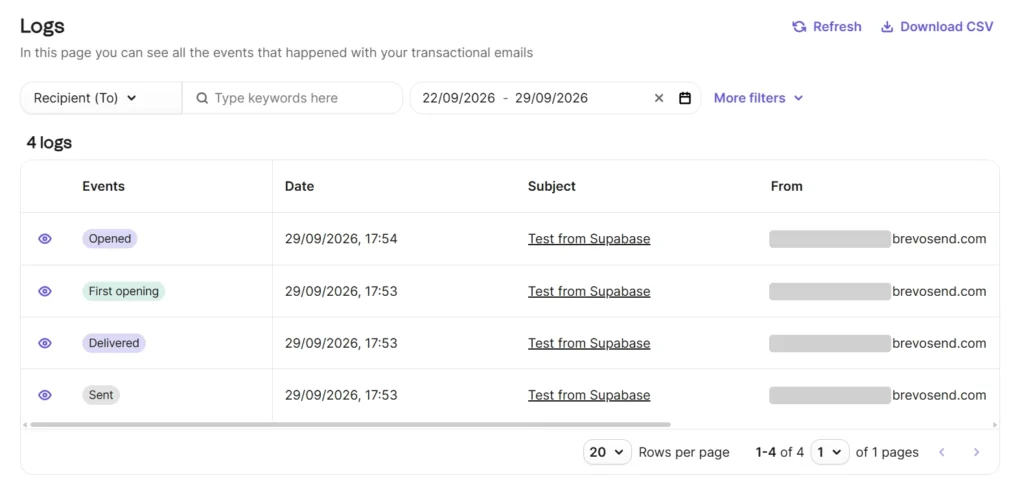
Then check the result in Brevo under Transactional > Logs, where each message shows its events: Sent, Delivered, then Opened.
Method 2: Send a welcome email from a database webhook
Database webhooks call a URL when a row is inserted, updated, or deleted. They are a convenient way to send an email when something happens in your data, without adding code to your frontend.
This example sends a welcome email whenever a row is added to a profiles table with email and full_name columns. Adjust the table and fields to your schema.
Step 1: Create a welcome template in Brevo
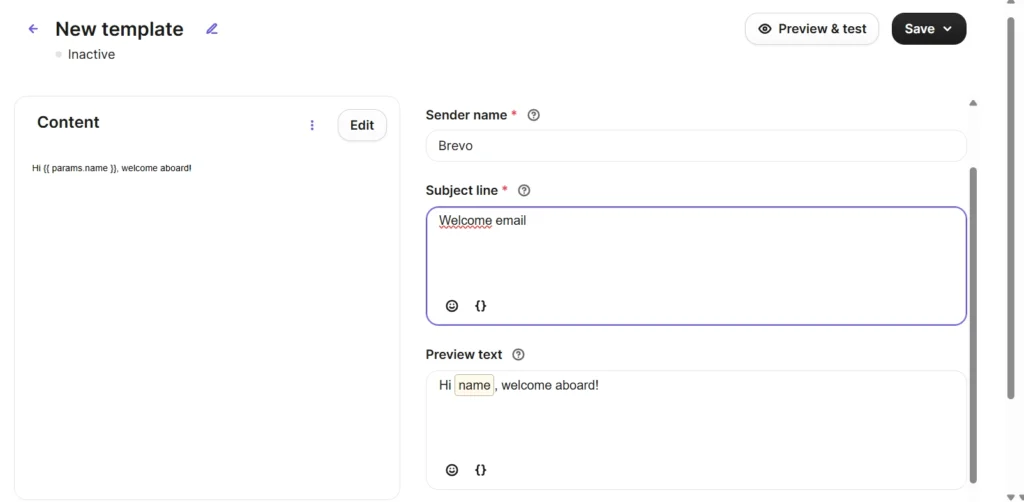
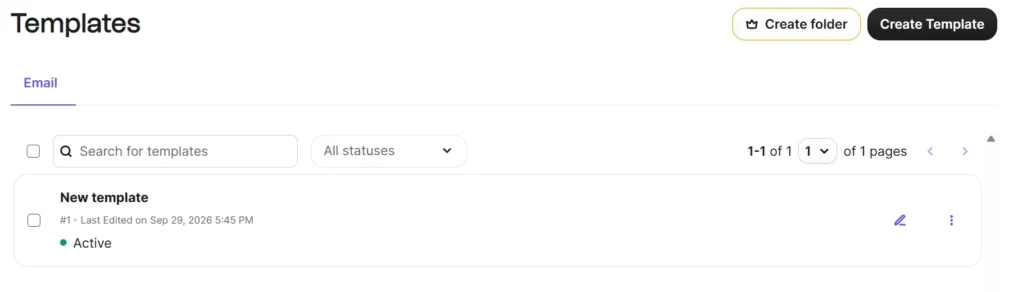
In Brevo, go to Marketing > Templates and click Create Template. Choose a sender: the function below doesn't set one, so Brevo uses the template's sender. In the body, type {{ params.name }} where the user's name should appear (the editor shows it as a "name" tag). Save the template and note its ID, shown as #1, #2, and so on in the template list. Your function sends it with templateId, and Brevo fills in the params you pass. For ideas on what to write, see our guide to effective welcome emails.
Step 2: Create the function
const BREVO_API_KEY = Deno.env.get("BREVO_API_KEY")!;
const WEBHOOK_SECRET = Deno.env.get("WEBHOOK_SECRET")!;
const WELCOME_TEMPLATE_ID = Number(Deno.env.get("BREVO_WELCOME_TEMPLATE_ID"));
Deno.serve(async (req) => {
// Reject calls that don't come from your database webhook
if (req.headers.get("x-webhook-secret") !== WEBHOOK_SECRET) {
return new Response("Unauthorized", { status: 401 });
}
const payload = await req.json();
if (payload.type !== "INSERT") {
return new Response("Ignored", { status: 200 });
}
const { email, full_name } = payload.record;
const res = await fetch("https://api.brevo.com/v3/smtp/email", {
method: "POST",
headers: {
"api-key": BREVO_API_KEY,
"content-type": "application/json",
accept: "application/json",
},
body: JSON.stringify({
to: [{ email }],
templateId: WELCOME_TEMPLATE_ID,
params: { name: full_name ?? "there" },
}),
});
return new Response(await res.text(), { status: res.status });
});
The webhook payload includes type (INSERT, UPDATE, or DELETE), table, schema, record, and old_record. For an insert, the new row is in record.
Because the database calls this function rather than a signed-in user, deploy it without JWT verification and protect it with your own shared secret. With the CLI, use the --no-verify-jwt flag. If you deploy from the dashboard, turn off Verify JWT with legacy secret in the function's Settings tab instead.
supabase secrets set WEBHOOK_SECRET=a-long-random-string BREVO_WELCOME_TEMPLATE_ID=12
supabase functions deploy welcome-email --no-verify-jwt
Step 3: Create the database webhook
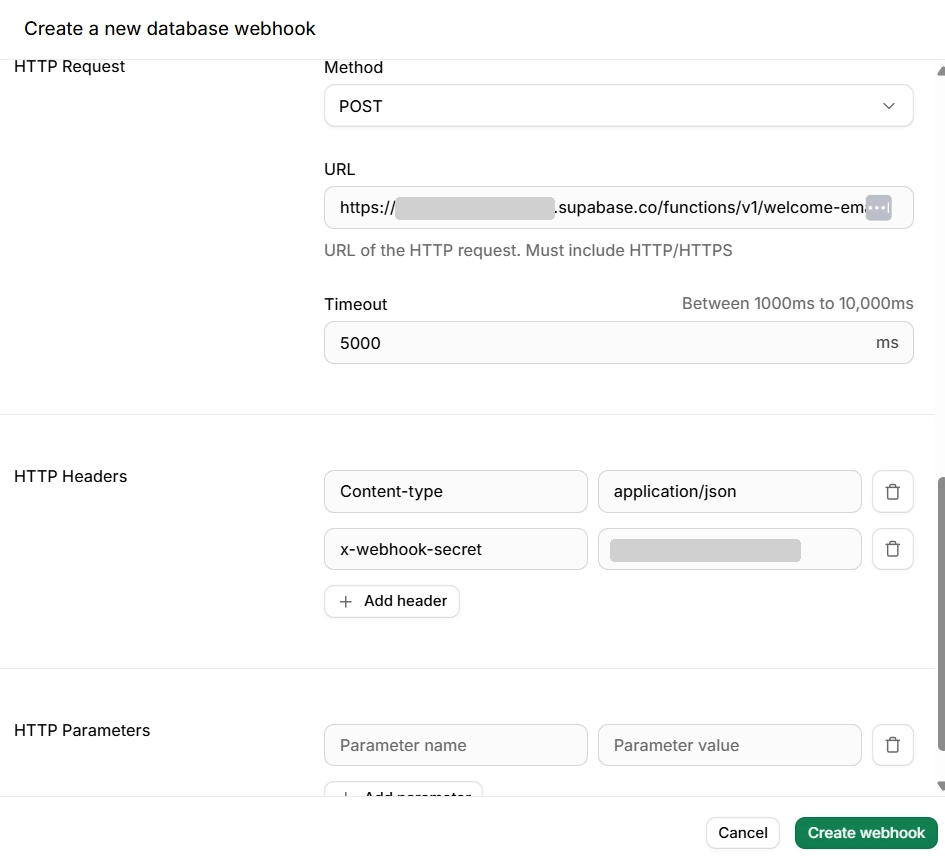
In the Supabase dashboard, go to Integrations > Database Webhooks and create a new webhook. If Database Webhooks isn't listed yet, search for it in Integrations and enable it first.
- Name: welcome_email (no spaces)
- Table: profiles
- Events: Insert
- Type of webhook: HTTP Request, method POST, pointing to your function URL (https://<project-ref>.supabase.co/functions/v1/welcome-email). Supabase also offers a Supabase Edge Functions type that lets you pick the function from a list.
- HTTP headers: keep the default Content-type header and add x-webhook-secret with the same value as your WEBHOOK_SECRET
Webhooks run asynchronously, so a slow email API never blocks the database insert.
Method 3: Send Supabase Auth emails through Brevo
Signup confirmations, magic links, and password resets come from Supabase Auth, not from your functions. You have two options.
Option A: Use Brevo SMTP (quickest)
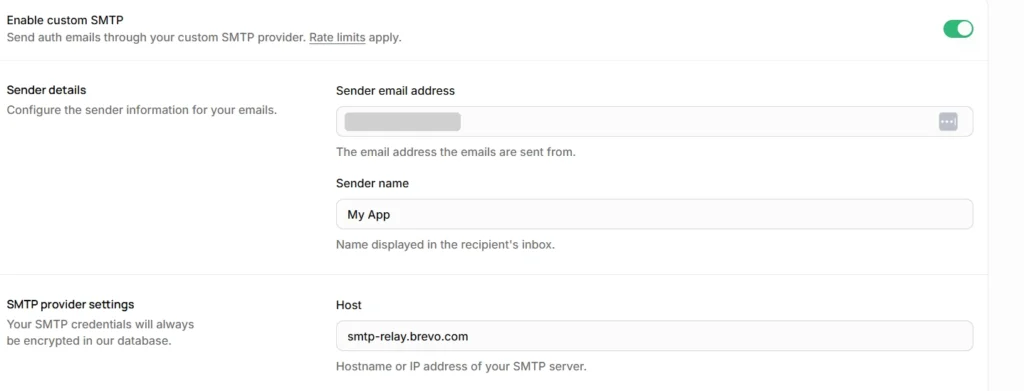
In the Supabase dashboard, go to Authentication > Emails > SMTP Settings, turn on Enable custom SMTP, and enter:
| Setting | Value |
|---|---|
| Host | smtp-relay.brevo.com |
| Port | 587 |
| Username | Your SMTP login from Brevo (Settings > SMTP & API, SMTP tab) |
| Password | A Brevo SMTP key (not your API key) |
| Sender email | A sender address verified in Brevo |
| Sender name | The name shown in the recipient's inbox, such as your app name |
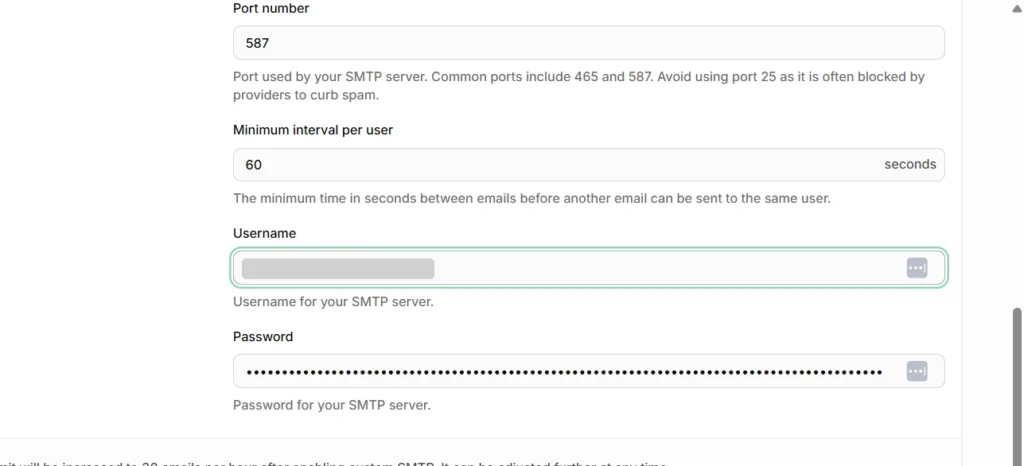
Enabling custom SMTP raises Supabase's email limit from 2 to 30 per hour, and you can raise it further in Authentication > Rate Limits. Leave Minimum interval per user at 60 seconds unless you need faster resends. Custom SMTP also unlocks editing the subject and body of Supabase's auth email templates, under Authentication > Emails > Templates.
New to SMTP? Our guide to SMTP servers explains how a relay works.
Option B: Use the Send Email Hook with Brevo templates
If you want auth emails designed in Brevo's editor, use the Send Email Hook. Supabase then calls your Edge Function instead of sending the email itself, and SMTP is no longer used. Our transactional email design examples can help you shape those templates.
The function below verifies that the request really comes from Supabase, picks a Brevo template for each type of auth email, and passes the confirmation link as a parameter:
import { Webhook } from "https://esm.sh/[email protected]";
const BREVO_API_KEY = Deno.env.get("BREVO_API_KEY")!;
const SUPABASE_URL = Deno.env.get("SUPABASE_URL")!;
const hookSecret = Deno.env
.get("SEND_EMAIL_HOOK_SECRET")!
.replace("v1,whsec_", "");
// One Brevo template per auth email type
const TEMPLATES: Record<string, number> = {
signup: Number(Deno.env.get("BREVO_TEMPLATE_SIGNUP")),
recovery: Number(Deno.env.get("BREVO_TEMPLATE_RECOVERY")),
magiclink: Number(Deno.env.get("BREVO_TEMPLATE_MAGICLINK")),
};
type HookPayload = {
user: { email: string };
email_data: {
token: string;
token_hash: string;
redirect_to: string;
email_action_type: string;
};
};
Deno.serve(async (req) => {
const payload = await req.text();
const headers = Object.fromEntries(req.headers);
try {
const { user, email_data } = new Webhook(hookSecret).verify(
payload,
headers,
) as HookPayload;
const templateId = TEMPLATES[email_data.email_action_type];
if (!templateId) {
throw new Error(`No template for ${email_data.email_action_type}`);
}
const confirmationUrl =
`${SUPABASE_URL}/auth/v1/verify?token=${email_data.token_hash}` +
`&type=${email_data.email_action_type}` +
`&redirect_to=${encodeURIComponent(email_data.redirect_to)}`;
const res = await fetch("https://api.brevo.com/v3/smtp/email", {
method: "POST",
headers: {
"api-key": BREVO_API_KEY,
"content-type": "application/json",
accept: "application/json",
},
body: JSON.stringify({
to: [{ email: user.email }],
templateId,
params: { confirmation_url: confirmationUrl, token: email_data.token },
}),
});
if (!res.ok) throw new Error(await res.text());
} catch (error) {
const message = error instanceof Error ? error.message : String(error);
return Response.json(
{ error: { http_code: 401, message } },
{ status: 401 },
);
}
return Response.json({}, { status: 200 });
});
To set it up:
- Create one Brevo template per email type (signup, password recovery, magic link) with a button linking to {{ params.confirmation_url }}. You can also show the one-time code with {{ params.token }}.
- Deploy the function with supabase functions deploy send-email-hook --no-verify-jwt. The webhook signature replaces JWT verification.
- Create the hook in Authentication > Auth Hooks: add a Send Email hook, choose HTTPS, paste the function URL, click "Generate secret", then "Create hook".
- Store the secrets with supabase secrets set SEND_EMAIL_HOOK_SECRET="v1,whsec_..." BREVO_TEMPLATE_SIGNUP=21 BREVO_TEMPLATE_RECOVERY=22 BREVO_TEMPLATE_MAGICLINK=23, using your own template IDs.
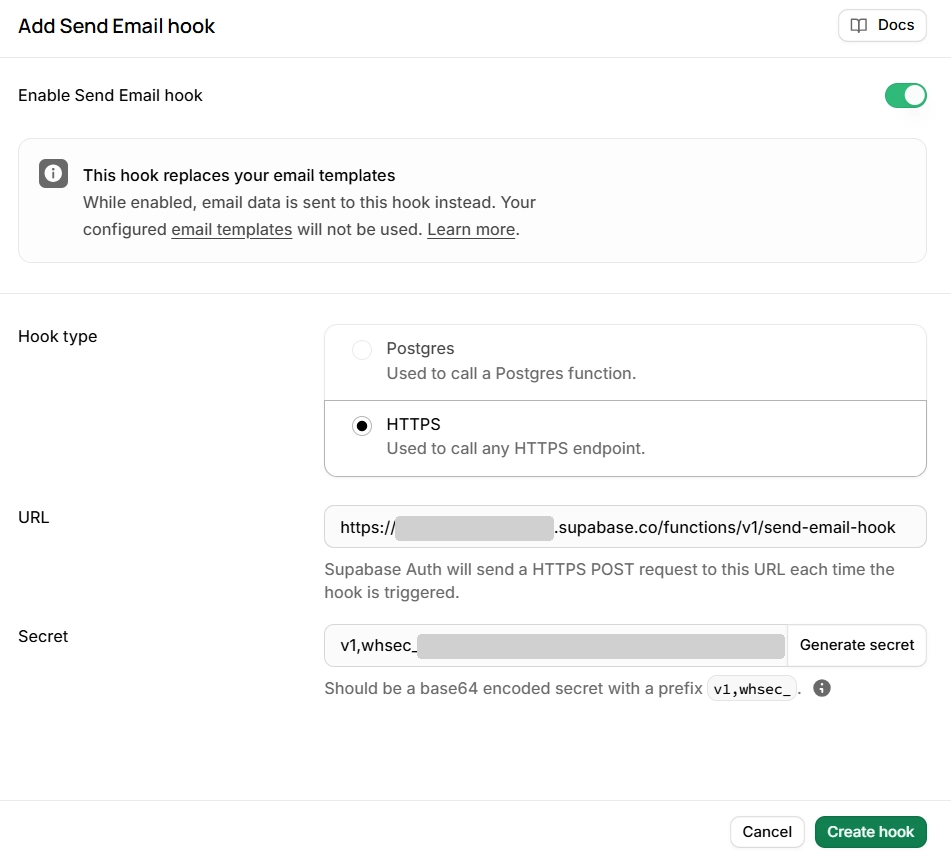
Keep two constraints in mind. The hook must respond within 5 seconds, and an empty response with status 200 counts as success. Any auth email type without a matching template (such as invite or reauthentication, or security notifications such as password_changed_notification if you enable them) returns an error and isn't sent, so add a template for every type your app uses. Email address changes need special handling: Supabase sends two tokens, and the field names are swapped (the current address gets token and token_hash_new, the new address gets token_new and token_hash).
Test without sending real emails
While you build, add "X-Sib-Sandbox": "drop" to the headers object inside the request body. It is an email header, not an HTTP request header:
body: JSON.stringify({
sender: { email: SENDER_EMAIL, name: "My App" },
to: [{ email: to }],
subject,
htmlContent: html,
headers: { "X-Sib-Sandbox": "drop" },
}),
Brevo validates the request and returns a success response with a messageId, but delivers nothing and creates no logs. Remove it before going live.
For more ways to check your flows, see our guide on how to test transactional emails in staging.
Common errors and how to fix them
| Symptom | Likely cause | Fix |
|---|---|---|
| 401 from Brevo | Missing or wrong API key | Check the secret name matches Deno.env.get() and redeploy |
| Error about the sender (API response or Brevo logs) | Sender not verified | Verify the sender address or domain in Brevo |
| 401 from your function | No user JWT, or webhook without the secret header | Call it with supabase.functions.invoke while signed in, or check the webhook header |
| CORS error in the browser | Preflight request not handled | Keep the OPTIONS branch and CORS headers |
| 429 from Brevo | Rate limit reached | Read the x-sib-ratelimit-reset header and retry with backoff (see our guide to API rate limits) |
| Auth emails stop after a few sends | Supabase Auth rate limit | Raise it in Authentication > Rate Limits |
Supabase and Brevo: What to set up first
Start with Brevo SMTP for Supabase Auth: it takes a few minutes and fixes the 2-emails-per-hour limit right away. Then add an Edge Function for app emails, and a database webhook for emails triggered by your data. Move auth emails to the Send Email Hook when you want them designed in the same templates as the rest of your emails.
Brevo covers transactional email, marketing campaigns, SMS, and CRM in one account, so the same setup can grow with your app. Its free plan includes 300 emails per day, no credit card needed. Get started with Brevo's email API today.