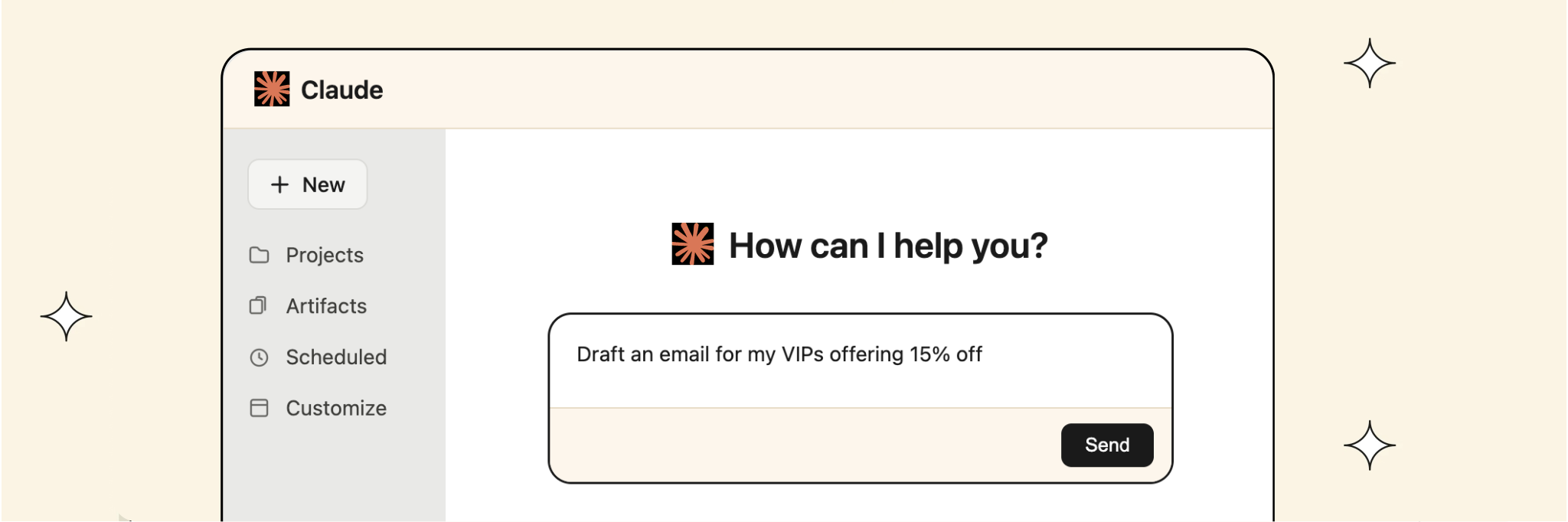
As a marketer, you likely already use Claude at work to draft emails, tidy up copy or think through a campaign idea. The part that still takes time is the data behind it. Finding the right audience means building a segment or asking another team. Checking what worked means pulling reports. And the draft itself starts in a blank editor.
The Brevo connector for Claude gives you a head start on all of that. Connect your Brevo account in a couple of clicks, and Claude can look up your contacts, read your campaign results and save email and SMS drafts straight to Brevo, all from the chat you already have open.
Here's a taste of what you can do with Brevo in Claude
- Ask questions across your whole account. "Which VIPs haven't received a campaign in 30 days?" gets you an answer in one message, pulled from your lists and campaign history
- Turn the answer into a draft. Stay in the same conversation and ask Claude to write the campaign. It uses what it just found as the brief
- Edit by asking. Request a shorter subject line or a warmer tone, and Claude updates the draft in Brevo
- Check in from anywhere. The connector works on Claude's web, desktop and mobile apps
Need some prompt ideas? Try these
Understand performance
- How did my last 5 email campaigns perform?
- Which subject lines had the highest open rates?
- What were the results of the A/B test on my last newsletter?
- Which variant won and by how much?
- Summarise last month's email and SMS results in five bullets
- Compare the click-through rates of my newsletters this quarter with last quarter.
Explore contacts
- How many VIP clients haven't received a campaign in the last 30 days?
- Find contacts who signed up in the last 30 days but haven't received a campaign yet.
- What lists is [email protected] subscribed to?
- When did she last open one of our emails?
- Which of my lists has grown the most over the last three months?
Create campaigns
- Draft an email and SMS campaign offering 15% off next purchase
- Based on my top-performing campaigns, draft an email campaign for our summer sale
- Write and save a draft SMS campaign for our weekend flash sale targeting my VIP list
- Create an email template for a win-back campaign with a hero section and a CTA button
- Look at my three best subject lines this year and use them to write a Black Friday email draft
Pro tip: The more context you give Claude, the more consistent and on-target its answers and drafts will be. Name the exact list or segment, set a time range ("in the last 30 days"), and say what a good result looks like to you, such as "open rate above 30%" or "friendly tone, under 50 words". For drafts, add your offer, sender name and any brand rules up front. If you run the same kind of campaign often, save the prompt and reuse it, so every draft starts from the same brief.
Here's a win-back campaign in one conversation:
Ask: How many VIP clients haven't received a campaign in the last 30 days?" Claude: 647 contacts in your VIP list haven't received a campaign since 21 July.
Draft: Draft an email and SMS campaign for them offering 15% off their next purchase. Claude saves both drafts in Brevo, with the subject line "15% off your next purchase" and the SMS code VIP15.
Review and send from Brevo. A few days later, ask Claude how the campaign performed.
You stay in charge of every send
Claude does the groundwork and you make the calls. It can read your contacts, lists, segments and campaign results, and it can create email campaigns, SMS campaigns and templates as drafts. Sending, scheduling and deleting stay with you in Brevo. That means everything Claude writes gets a human review before any customer sees it.
It works from your live account, so the answers reflect your contacts and results as they are today. Anthropic doesn't use data shared through Brevo to train its models, with limited exceptions such as when you submit feedback or opt in. If you ever want to disconnect, you can do it from Claude's connector settings, and your Brevo data stays as it is.
Get up and running in under a minute
In Claude:
- Open Settings > Connectors, search for Brevo
- Log in with your Brevo account.
- Review the permissions, click Authorize,
- You're ready to go!
The connector is free on all Brevo plans and works with a free Claude account, though a paid Claude plan gives you the best experience.
If your team wants to go further, the Brevo MCP server opens up more of your account to AI tools: CRM deals, companies and tasks, plus senders, domains and webhooks. It connects with an MCP token and works in Claude, Cursor, VS Code and other MCP-compatible tools.


