
Your domain is managed by Squarespace, maybe because you built your site there or because your domain moved over from Google Domains. Now your app or online store sends email from that domain through another service, and those emails land in spam.
The fix is to add your email provider's DKIM record, plus a DMARC record, in Squarespace's DNS settings. This guide walks you through it, using Brevo as the sending service. The steps are the same for any provider. Only the values you paste change. For the background on what each record does, see our guide to email authentication.
The information in this article was last updated on October 15, 2026.
Table of Contents
- Before you start
- The records you'll add (quick reference)
- How to find the DNS settings in Squarespace
- Step 1: Add the Brevo code
- Step 2: Add DKIM records on Squarespace
- Step 3: Check your SPF record
- Step 4: Add a DMARC record on Squarespace
- Step 5: Verify your records
- Common Squarespace DNS errors and how to fix them
- Squarespace DKIM checklist
- Get your app's emails into the inbox
Before you start
You'll need three things:
- Access to your Squarespace account with the domain you send from.
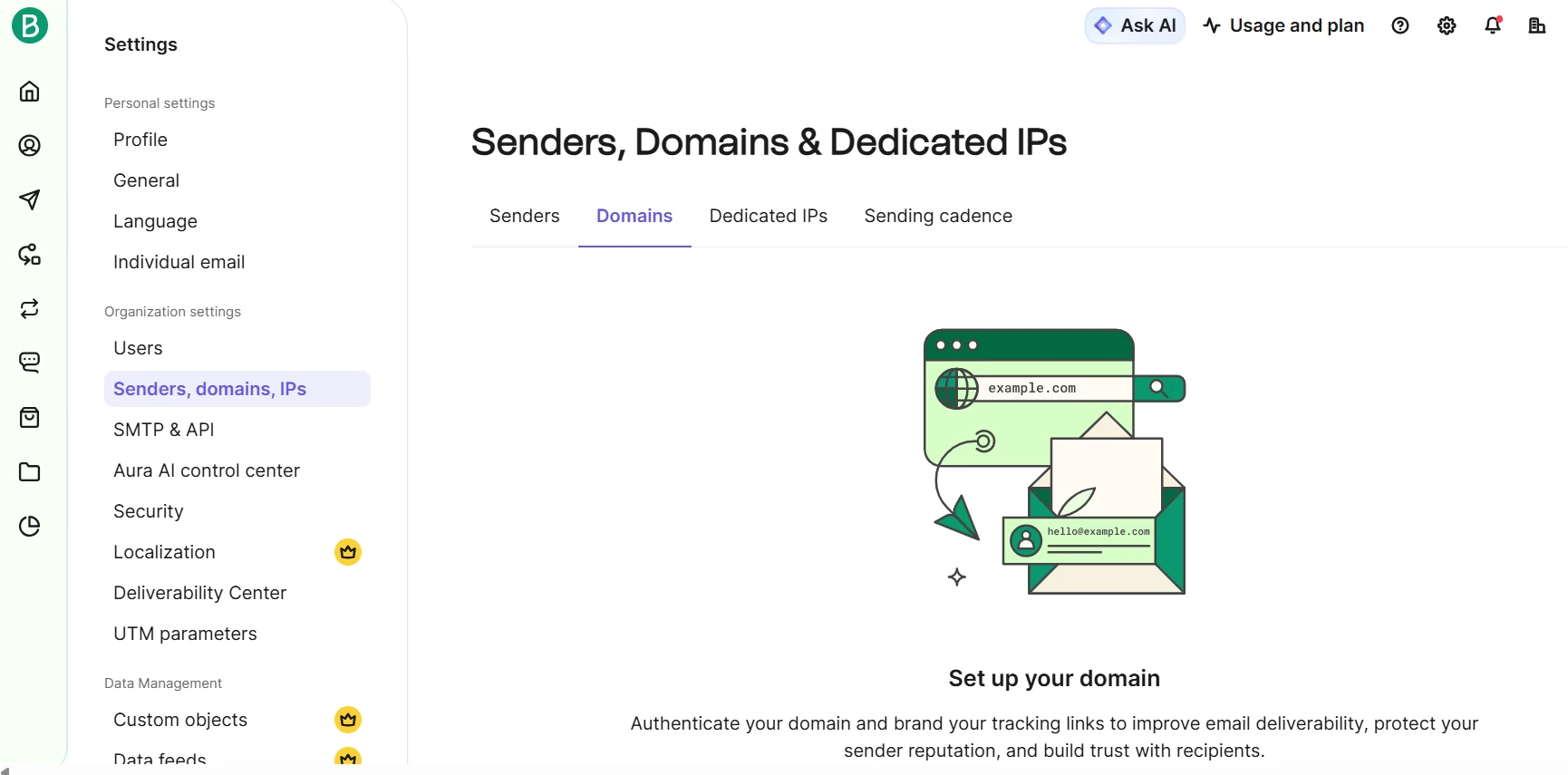
- The DNS records from your email provider. In Brevo, go to Settings > Senders, Domains, IPs > Domains and click Add a domain. Enter your sending domain, go through the Branded subdomain and Setup method steps (choose the manual option), and Brevo shows your records on the Records step.
- About 10 minutes, plus up to 48 hours of waiting.
Check first that Squarespace actually manages your DNS. You can only edit DNS records in Squarespace if your domain is registered with Squarespace or connected through Nameserver Connect (Squarespace).
- Domain registered elsewhere and connected with DNS Connect: your DNS lives at that registrar. Add the records there, for example in Namecheap or GoDaddy.
- Custom nameservers (Cloudflare, for example): records in Squarespace's DNS settings no longer apply, so add them at your nameserver provider (Squarespace).
To check, open your domains dashboard, click the domain, then DNS > Domain Nameservers. Squarespace's default nameservers can end in .googledomains.com, .nsone.net, .squarespacedns.com, or .systemdns.com.
The records you'll add (quick reference)
| Record | Type | Name | Text / Data | Required by Brevo? |
|---|---|---|---|---|
| Brevo code | TXT | @ | brevo-code:xxxxxxxx | Yes |
| DKIM 1 | CNAME | brevo1._domainkey | b1.xxxxxxxx.dkim.brevo.com | Yes |
| DKIM 2 | CNAME | brevo2._domainkey | b2.xxxxxxxx.dkim.brevo.com | Yes |
| DMARC | TXT | _dmarc | v=DMARC1; p=none; rua=mailto:[email protected] | Yes |
| SPF | TXT | @ | The value Brevo gives you | Only with a dedicated IP |
The xxxxxxxx parts are unique to your account, so copy them from Brevo and never from a tutorial. Our guide to DNS email records explains how these record types fit together.
How to find the DNS settings in Squarespace
- Open your domains dashboard and click your domain.
- Click DNS, then DNS Settings.
- Scroll down to Custom Records and click Add record.
Each record has a Type, a Name, and a Text field (for TXT records) or a Data field (for CNAME records). Leave the TTL on its default and click Save. Squarespace may ask for your password, or a two-factor code, before you can change DNS.
In the Name field, enter only the part before your domain. Squarespace adds the domain for you (Squarespace). Type brevo1._domainkey, not brevo1._domainkey.yourdomain.com. Also replace the gray example text in the fields, because Squarespace won't save a record that still contains it.
Step 1: Add the Brevo code
- Click Add record and choose TXT.
- Name: @
- Text: paste the brevo-code:... string from Brevo.
- Click Save.
Step 2: Add DKIM records on Squarespace
DKIM adds a digital signature to every email you send. The receiving server checks it against the key in your DNS. A match proves the email came from a service you authorized and wasn't changed on the way.
Brevo gives you either two CNAME records or one TXT record (Brevo Help). For the CNAME version:
- Click Add record and choose CNAME.
- Name: brevo1._domainkey
- Data: paste the b1.....dkim.brevo.com target from Brevo, with no period at the end.
- Add a second CNAME with Name brevo2._domainkey and Data b2.....dkim.brevo.com.
- Click Save.
If Brevo shows a single TXT record instead, choose TXT and paste the key in the Text field. Squarespace accepts DKIM records up to 2048 bits without splitting them (Squarespace).
If you use Squarespace Email Campaigns, its DKIM record (squarespace._domainkey) stays in place. Each DKIM record has its own selector, so Brevo's records and Squarespace's live side by side.
Step 3: Check your SPF record
On Brevo's shared IPs (the default), you don't need to change your SPF record. Your emails pass SPF on Brevo's own return-path domain, and DMARC passes through your aligned DKIM signature. You only add Brevo to SPF when you use a dedicated IP with a branded subdomain (Brevo Help).
If you do need to add an SPF value, Squarespace works differently from most registrars. On most DNS hosts, a domain must have exactly one SPF record. Squarespace lets you add each SPF value as a separate custom record and merges them into one for you (Squarespace). After a refresh, they may still look like separate records, but they're published as a single one.
Two things to watch:
- If you see a "Custom records not saved" error, delete your existing SPF records and add them again.
- Squarespace notes that quotation marks around an SPF value can cause propagation problems. If your record doesn't resolve, remove them.
Step 4: Add a DMARC record on Squarespace
DMARC tells receiving servers what to do with an email that fails authentication. It also sends you reports on who is sending email with your domain.
- Click Add record and choose TXT.
- Name: _dmarc
- Text: v=DMARC1; p=none; rua=mailto:[email protected]
- Click Save.
Start with p=none. This policy only monitors, so nothing gets blocked while you check that every legitimate sender passes. When your reports look clean, move to p=quarantine, then p=reject.
A domain can only have one DMARC record. If you already have one, add Brevo's address to the existing rua tag, separated by a comma, instead of creating a second record (Brevo Help).
If you also use Squarespace Email Campaigns
Email Campaigns adds its own DMARC record through a preset, which you can't edit directly. To combine it with Brevo's, Squarespace's instructions are to delete the preset and recreate its records as custom records (Squarespace):
- Delete the Squarespace Email Campaigns preset.
- Add a CNAME record: Name squarespace._domainkey, Data squarespace-domainkey.squarespace-mail.com.
- Add a single TXT record on _dmarc that covers both services:
v=DMARC1; p=none; rua=mailto:[email protected]
If you already receive DMARC reports at another address, add it to the same rua tag, separated by a comma.
Gmail requires bulk senders to publish a DMARC record with at least p=none, and it has been tightening enforcement since November 2025 (Google). Our guide to Gmail and Yahoo sender requirements covers the full list.
Step 5: Verify your records
Squarespace says DNS changes can take 24 to 48 hours to update, so don't worry if Brevo doesn't find your records right away.
Check the record directly. Open Google Admin Toolbox Dig, choose CNAME, and enter brevo1._domainkey.yourdomain.com. If the answer shows your b1.....dkim.brevo.com target, the record is live. For DMARC, choose TXT and look up _dmarc.yourdomain.com.
In Brevo, go back to Settings > Senders, Domains, IPs > Domains and click Authenticate this email domain.
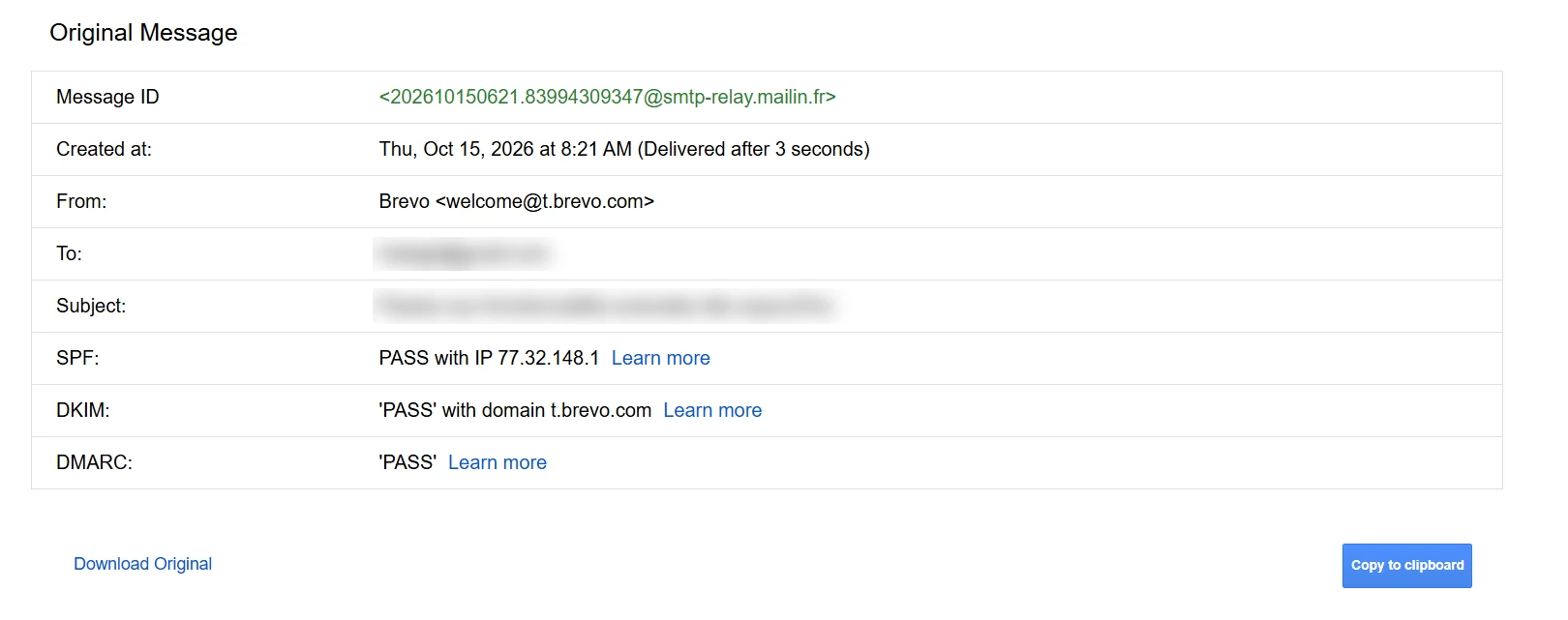
In Gmail, send a test email from your app to a Gmail address and open it. Click the three-dot menu next to Reply and choose Show original. You want PASS next to DKIM and DMARC.
Common Squarespace DNS errors and how to fix them
| Problem | Likely cause | Fix |
|---|---|---|
| Records saved but never found | Domain uses custom nameservers or DNS Connect | Add the records where your DNS is managed |
| Record won't save | Gray example text left in a field | Replace it with your real values |
| "Name error" or "Enter valid data" | Trailing period or extra character in the value | Remove the period at the end of the Data field |
| "This name record is already in use" | Another record type uses the same Name | Check for an old record on that Name and remove it if unused |
| "Custom records not saved" on SPF | Conflict with existing SPF records | Delete the existing SPF records, then add them again |
| CNAME rejected on @ | Squarespace doesn't allow CNAME on the root | Use the Name Brevo gives you (brevo1._domainkey) |
| DMARC doesn't include Brevo | Email Campaigns preset still active | Replace the preset with custom records and one merged DMARC |
| Authentication passes, emails still in spam | New domain, no reputation yet | Warm up the domain gradually |
If authentication passes and emails still land in spam, the problem is usually reputation, not DNS. Read up on how spam filters work, follow our guide on how to warm up an email domain, and work through our email deliverability best practices.
Squarespace DKIM checklist
- Squarespace manages your DNS (no custom nameservers, no DNS Connect)
- Brevo code added as a TXT record on @
- Two DKIM CNAMEs added: brevo1._domainkey and brevo2._domainkey, with no trailing period
- Name fields contain only the prefix, not your domain
- One DMARC record on _dmarc, starting at p=none, merged with Email Campaigns if you use it
- Brevo shows the domain as authenticated, and Gmail shows DKIM and DMARC PASS
Get your app's emails into the inbox
On a Squarespace domain, authentication comes down to four custom records: the Brevo code, two DKIM CNAMEs, and one DMARC record. Type only the prefix in the Name field, leave no period at the end of values, and keep a single DMARC record, merged with Email Campaigns if needed.
If your app still needs a sending service, an email API like Brevo's works with apps built with AI app builders and custom code alike. The free plan includes 300 emails per day, no credit card needed. Create a free Brevo account to get your DNS records.