
Replit Agent can build a full app from a prompt, but your app still needs an email provider to send welcome emails, password resets, or order confirmations. Replit has no email service of its own. Instead, it offers connectors, integrations you enable once and reuse in every app you build. Brevo is one of them.
This guide shows how to enable the Brevo connector, ask Agent to build a sending flow, and check that your transactional emails arrive. It also shows how to add Brevo's MCP server, so Agent can manage templates, contacts, and campaigns from the chat. We tested every step in a new Replit project, and the code below is what Agent generated.
The information in this article was last updated on October 14, 2026.
Table of Contents
- How the Brevo connector works in Replit
- What you need before you start
- Step 1: create a Brevo API key
- Step 2: enable the Brevo connector in Replit
- Step 3: ask Replit Agent to build the email flow
- Step 4: test and check delivery in Brevo
- Step 5: publish your app
- Optional: let Replit Agent manage your Brevo account with the MCP server
- Alternative: use your Brevo API key in Secrets
- Troubleshooting Replit email with Brevo
- Start sending email from Replit
How the Brevo connector works in Replit
When you enable the Brevo connector, you give Replit your Brevo API key once. Replit stores it at the account level, not in your project. Your app calls Brevo through Replit's connector proxy, and Replit adds the key to each request on the way out.
- No key in your code or Secrets. The app never sees the API key, so it can't leak through a commit, a shared project, or the browser.
- One setup for every app. The connection belongs to your Replit account, so new projects can use it right away.
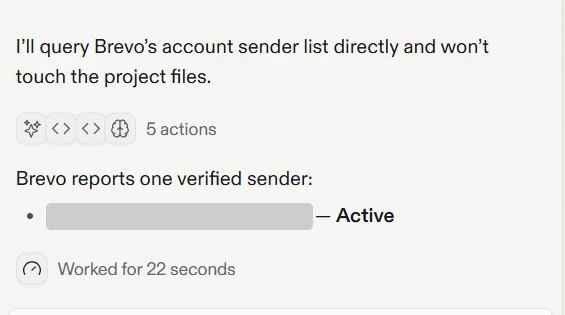
- Agent can use it while building. In our test, Agent found the connection on its own and read the Brevo account, for example to list verified senders.
Behind the connector is the standard Brevo API (here's what an email API is if you're new to it), so your app can use everything the API offers, from templates to contacts.
What you need before you start
- A Brevo account. The free plan includes 300 emails per day with API access, no credit card needed.
- A verified sender in Brevo. Brevo only sends from addresses you have verified. For production, also authenticate your domain, as explained in our guide to SPF, DKIM, and DMARC.
- A Replit account. We ran this test on the free Starter plan, where Agent works in Free Mode with usage limits. Replit's documentation says most connectors require a Core, Pro, or Enterprise subscription, but the Brevo connector was available on the free plan when we tested it.
Step 1: create a Brevo API key
In Brevo, go to Settings > SMTP & API, open the API keys & MCP tab, and click Generate API key. Brevo asks for a verification code, then a name and an optional expiry date (from 7 days to 1 year). Name the key "Replit" so you can recognize it and revoke it later. Keys with no activity for 90 days are deactivated either way.
Copy the key as soon as it appears, because Brevo only shows it once. Make sure it's an API key (it starts with xkeysib-), not an SMTP key.
Step 2: enable the Brevo connector in Replit
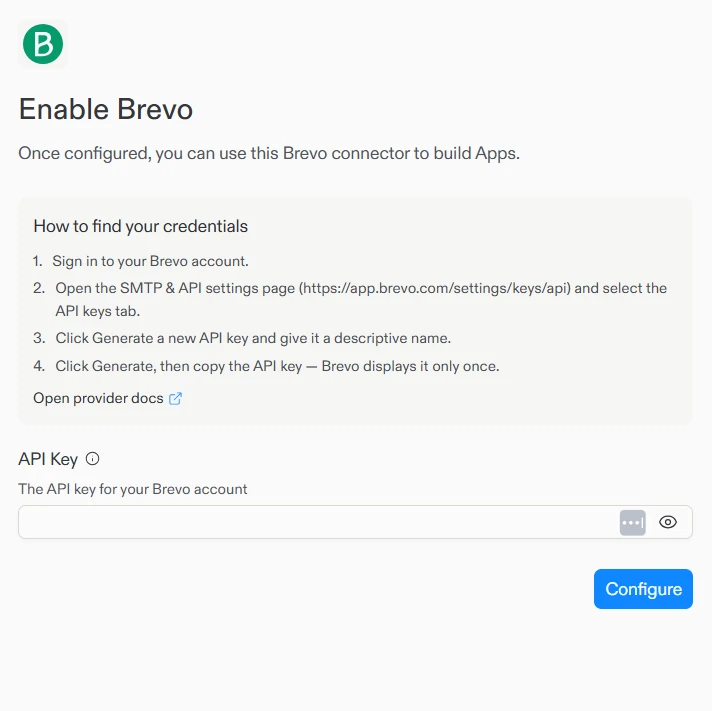
In Replit, open Integrations from the left sidebar, search for Brevo, and click Enable. Paste your key in the API Key field and click Configure.
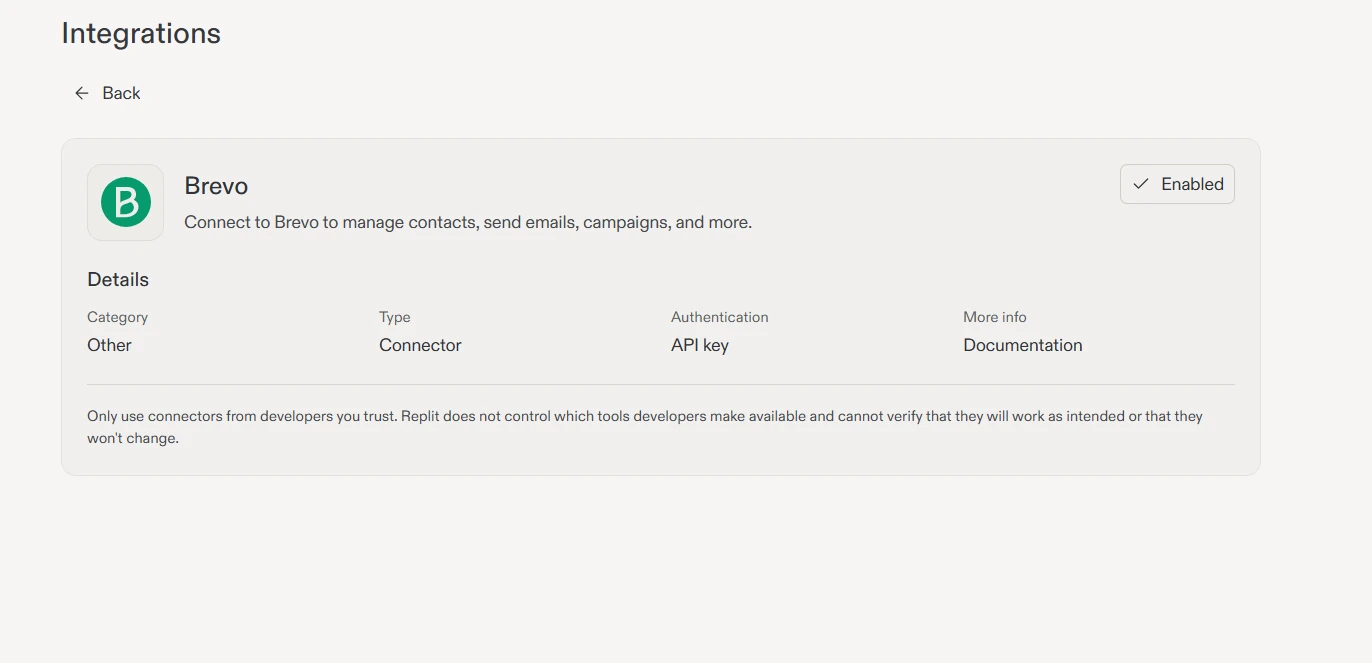
The Brevo card now shows Enabled, with the type Connector and API key authentication. You only do this once. To rotate the key later, generate a new one in Brevo and update it here. Apps that use the connector pick it up without code changes.
Step 3: ask Replit Agent to build the email flow
Create a new app and describe what you want. We used this prompt:
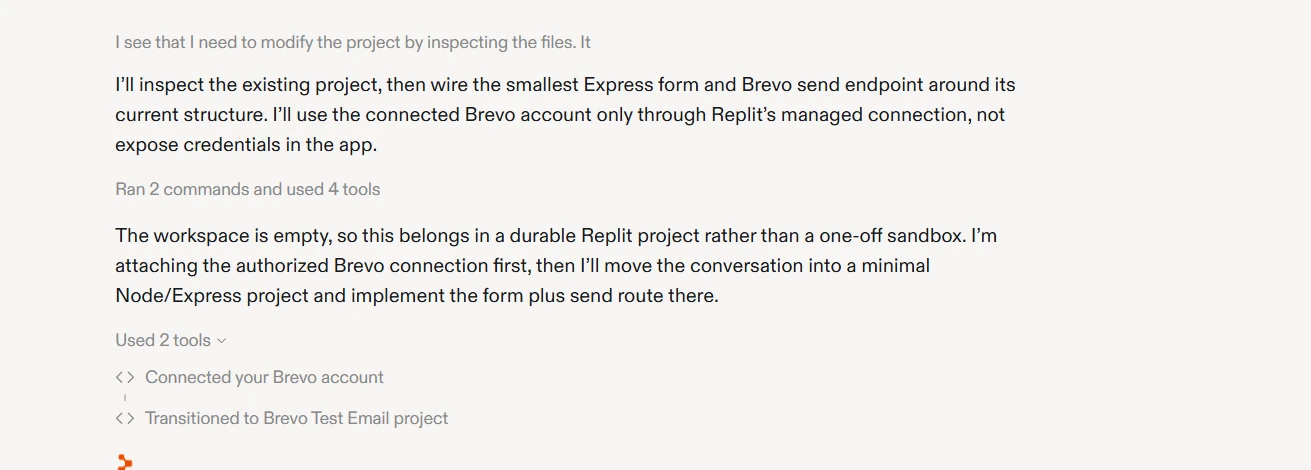
Agent detected the Brevo connection without being asked for a key and said it would use it only through Replit's managed connection, without exposing credentials in the app.
Here is the server route it generated (artifacts/api-server/src/routes/send-test-email.ts), trimmed to the essentials:
The key line is connectors.proxy("brevo", "/smtp/email", ...). It sends the request to Brevo's transactional email endpoint, and Replit adds your API key on the way. The route also logs Brevo's error response instead of hiding it, which saves time when a sender isn't verified.
From there, ask Agent to adapt the route to your real flows, such as a welcome email on signup or a receipt after payment. To send a Brevo template instead of inline HTML, replace subject and htmlContent with templateId and params. For the content itself, see these tips on effective welcome emails.
Step 4: test and check delivery in Brevo
Open the preview, enter your own address, and send a test. Then open Brevo > Transactional > Logs, where each message shows its status, from Sent to Delivered and Opened.
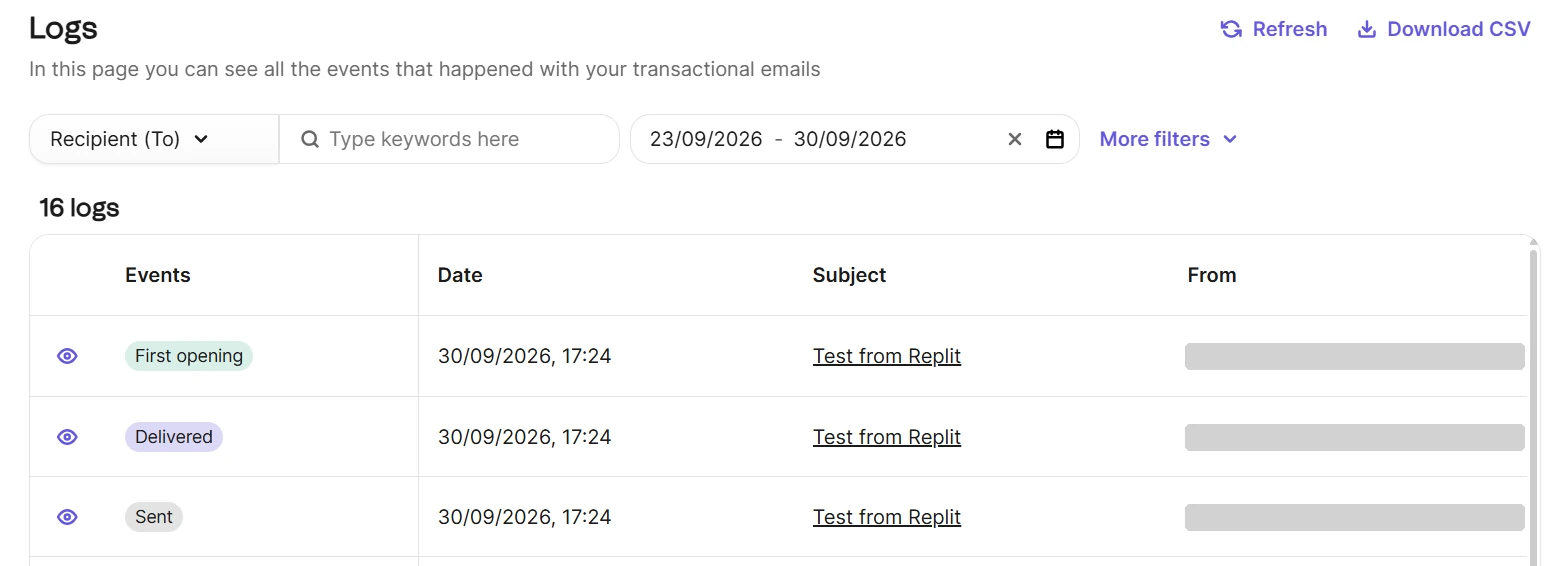
To test without sending real emails, add "headers": { "X-Sib-Sandbox": "drop" } to the JSON body. Brevo validates the request and returns a success response, but delivers nothing. For more ways to test, see our roundup of email testing tools.
Step 5: publish your app
When you publish, the connector goes with the app. Replit's connector SDK detects when it runs in a published app and authenticates it there, so you don't need to copy your Brevo key into production secrets.
Check anything else your app reads from Secrets, such as a sender address or a template ID. Development and production secrets are managed separately, so add those values under Publishing > Adjust settings > Production app secrets, then publish again. Secrets work for every deployment type except Static, so an app that sends email needs a backend (Autoscale works).
Optional: let Replit Agent manage your Brevo account with the MCP server
The connector covers sending. Brevo also has an MCP server, which gives Replit Agent ready-made tools to work with your Brevo account from the chat: templates, contacts, lists, campaigns, and CRM data. It doesn't send transactional emails, which stay with your app and the connector.
It's useful when you want Agent to set up Brevo while it builds, for example to create a welcome template or a list of beta users, without adding that logic to your app.
Create an MCP key in Brevo
In Settings > SMTP & API, open the API keys & MCP tab, click Generate API key, and turn on Create MCP server API key in the confirmation window. Brevo then gives you an MCP version of the key, which can't be used for API calls. Keep it separate from the key in your connector.
Add the server in Replit
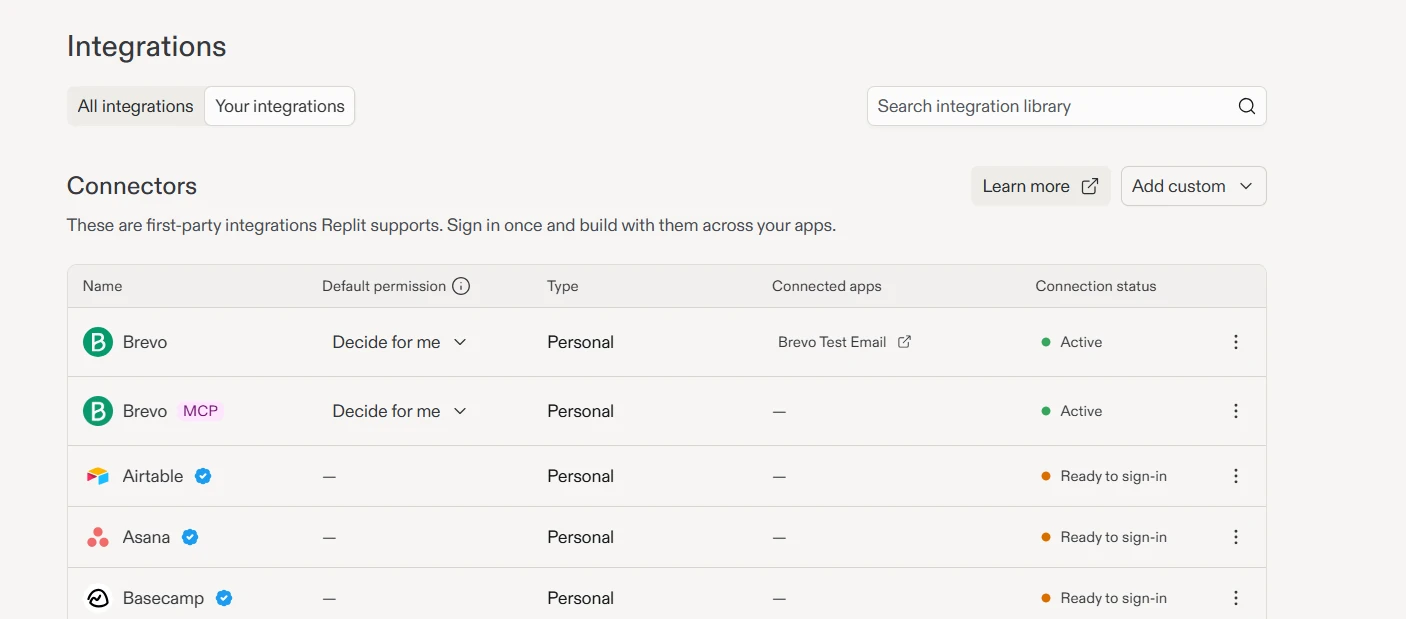
In Integrations, open Your integrations, click Add custom, then Add personal MCP server:
- Display name: a name Agent will use in the chat, such as "Brevo templates".
- MCP Server URL: the URL of the Brevo module you need (see below).
- Advanced settings: click Add header, enter Authorization as the name and Bearer <your-MCP-key> as the value.
- Leave Scan tool output for prompt injection checked, then click Test & save.
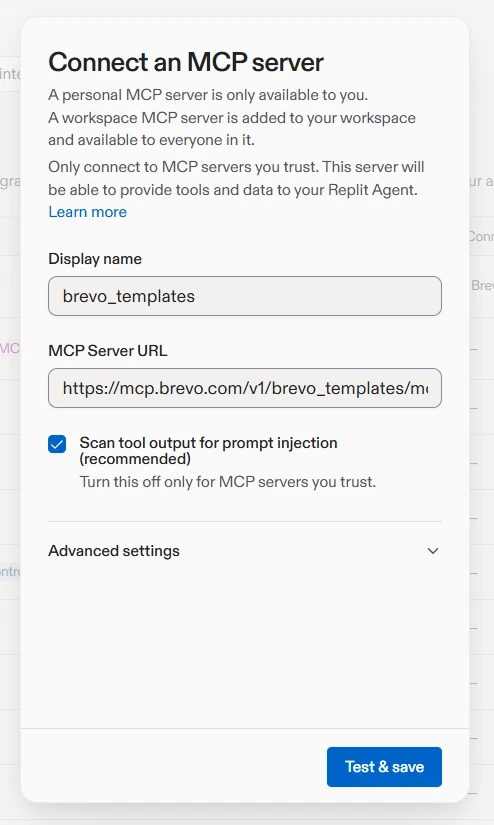
A personal server is only available to you. A workspace server is shared with everyone in your Replit workspace. Once saved, the server shows up next to the connector with an MCP label.
Connect one module, not the full server
This detail decides whether the MCP server is useful in Replit. In our test, the full server (https://mcp.brevo.com/v1/brevo/mcp) gave Agent exactly 100 tools, grouped alphabetically from accounts to email campaigns. Templates, lists, and senders never reached Agent, which suggests Replit only loads the first 100 tools of a server.
Brevo splits its MCP server into 27 modules, each with its own URL, so connect the ones you need instead:
brevo_templatesfor email templatesbrevo_contactsfor contacts and listsbrevo_sendersfor sender identitiesbrevo_email_campaign_managementfor email campaigns
The URLs follow the same pattern, for example https://mcp.brevo.com/v1/brevo_templates/mcp. Don't confuse brevo_templates with brevo_transac_templates, which covers SMS templates and the history of sent transactional emails. With the templates module connected, Agent listed our email templates in one request.
Connecting only what Agent needs also limits the risk. The full server includes tools that can't be undone, such as sending a campaign right away or deleting data. For anything that reaches real contacts, ask Agent to create drafts and send them from Brevo yourself.
Alternative: use your Brevo API key in Secrets
The connector ties your sending code to Replit. If you want code that also runs outside Replit, or you prefer to manage the key yourself, store it as a secret and call the Brevo API directly:
- Open Tools, then Secrets in the Setup section, click New Secret, and add
BREVO_API_KEYwith your API key. - Call the API from server-side code only, never from the frontend.
- Before you publish, add the same secret under Production app secrets and publish again. A missing production secret is a common reason emails work in the editor but not in the live app.
Troubleshooting Replit email with Brevo
| Problem | Likely cause | Fix |
|---|---|---|
| "Brevo could not send the test email" | Brevo rejected the request, often because the sender isn't verified | Check the error in the app logs and verify the sender in Brevo |
| Agent asks you for a Brevo API key | The connector isn't enabled for this account or workspace | Enable Brevo in Integrations, then ask Agent to use the Brevo connector |
| 401 error from Brevo | The key was revoked or expired, or it's an SMTP key | Generate a new API key and update it in the connector |
| 429 error from Brevo | Too many requests in a short time | Retry with a delay, and see how API rate limits work |
| Emails work in the editor but not in the published app (Secrets method) | Production secrets are missing | Add them under Production app secrets and publish again |
| Agent can't find template, list, or sender tools | The full MCP server only exposes its first 100 tools in Replit | Connect the module you need, such as brevo_templates |
| Emails land in spam | Domain not authenticated | Set up SPF, DKIM, and DMARC for your sending domain |
Start sending email from Replit
With the Brevo connector, sending email from Replit takes one API key and one click in Integrations. Agent writes the sending code, the key stays with Replit, and every message shows up in Brevo's logs. The same Brevo account also covers marketing campaigns, SMS, and CRM as your app grows.
Brevo's free plan includes 300 emails per day, no credit card needed. Get started with Brevo's email API.