
The goal of Magento 2 order SMS notifications is to update customers with real-time alerts after they place an order. These notifications help reduce support requests and build trust throughout the fulfillment process.
Magento 2 refers to the Magento platform family, which includes Magento Open Source and Adobe Commerce. It does not support SMS notifications out of the box, so you will need to add the functionality using a third-party integration or a custom API integration.
This guide walks you through each approach, shows you how to configure order SMS notifications, covers compliance requirements, and helps you troubleshoot common issues.
- What are Magento order SMS notifications?
- 3 ways to set up Magento order SMS notifications
- How to set up Magento order SMS notifications using Brevo (Option 1)
- How to set up Magento order SMS notifications using an extension + gateway (Option 2)
- How to send SMS notifications to admin (warehouse or store owner notifications)
- SMS compliance for Magento order notifications
- Are your Magento SMS notifications not working?
- Ready to set up Magento order notifications?
What are Magento order SMS notifications?
Magento order SMS notifications are automated text messages sent to customers or store admins when important order events occur, including order confirmations, shipping updates, deliveries, cancellations, and refunds. These messages are a key part of SMS marketing.
They provide customers with real-time updates through the order lifecycle.
Magento 2 does not support SMS notifications out of the box or natively. To automate them, you will need an SMS extension, an SMS gateway like Twilio, or a direct API integration with a messaging platform like Brevo.
Magento order notifications typically fall into two types of SMS.
Customer notifications keep shoppers updated on the status of their purchase.
Admin notifications alert your warehouse team when action is required, such as processing a new order or handling a cancellation/refund request.
Magento stores benefit from enabling both, as they improve the customer experience while helping internal teams respond faster.
Through Magento, you can send the following order-related SMS notifications:
| EVENT | SEND TO CUSTOMER? | SEND TO ADMIN? | SMS TYPE |
|---|---|---|---|
| Order placed | ✅ | ✅ | Transactional |
| Invoice generated | Optional | ✅ | Transactional |
| Order shipped | ✅ | ❌ | Transactional |
| Order delivered | ✅ | ❌ | Transactional |
| Order cancelled | ✅ | ✅ | Transactional |
| Order amount refunded | ✅ | ✅ | Transactional |
Each notification is automatically triggered by a specific order event, creating a smooth communication flow from order confirmation to refund. Since these messages relate to an existing purchase, they are generally considered transactional SMS (the goal is to update a customer) rather than promotional marketing messages (the goal is to sell).
Quick Takeaway
- Magento 2 does not support SMS notifications natively other than transactional SMS notifications, such as order confirmation, order shipment, and order cancellation.
- Magento integrations through Brevo and Dotdigital are the quickest to set up. A Magento SMS extension paired with a gateway like Twilio offers more flexibility, while custom API integrations are best suited to highly customized stores.
- Collect customer phone numbers at checkout using an SMS marketing opt-in checkbox to help comply with applicable TCPA and GDPR requirements.
3 ways to set up Magento order SMS notifications
Since Magento 2 does not send SMS notifications natively, you will need to add this functionality through a plugin, a Magento SMS gateway, or a custom integration.
The right approach depends on whether you want the fastest setup, greater flexibility, or complete control over your notification workflow.
- If you also want email marketing automation and SMS in one platform, choose Option 1 (an official plugin through a marketing platform).
- If you already have a Twilio account or need more flexibility over your SMS provider, choose Option 2 (extension + gateway).
- If you have a developer and need custom workflows, multi-warehouse logic, or conditional triggers, choose Option 3 (custom API integration).
A plugin is the easiest place to start for a Magento merchant.
It covers common transactional notifications, such as order confirmations and shipment updates, without requiring a separate SMS gateway or custom development.
Here are the three options to set up Magento order SMS notifications:
Option 1: Connect to Magento through a marketing platform
Platforms such as Brevo and Dotdigital offer Magento integrations that let you manage email and SMS from a single platform. Instead of connecting Magento to a separate SMS gateway, you can install the plugin and configure SMS notifications directly within the platform.
Merchants who want to manage transactional email and SMS together without maintaining multiple integrations will benefit from this option.
All your customer data, marketing automations, reporting, and analytics will be in one place; rather than isolated workflows, your email and SMS can work in coordination, and even billing across channels can occur on one platform.
Option 2: Use a Magento SMS extension with a third-party gateway
If your business already relies on a particular SMS provider, or you need more flexibility than an integration offers, a Magento SMS extension with a third-party SMS gateway can help.
Popular Magento SMS extensions include Meetanshi, MageDelight, and Mageplaza, and they can be connected to a gateway such as Twilio, Plivo, MSG91, or BulkSMS.
This option is a good fit if you are already using a specific SMS provider. The tradeoff is that you will manage two separate services, your Magento extension and your SMS gateway.
This setup means separate billing, configuration, and maintenance.
Option 3: Build a custom API integration
If your store has unique business requirements that will make the above two options cumbersome, you can integrate Magento directly with an SMS provider’s API instead of using a pre-built extension.
This approach gives developers complete control over how and when SMS notifications are sent.
This option is best suited for businesses with in-house development resources or highly customized Magento stores. A custom integration gives you complete control over when SMS messages are sent, what they contain, and how they fit into your existing business logic.
For example, you can trigger notifications based on custom order statuses or build conditional workflows. If you pick this option, you will be responsible for building and maintaining the integration as your store and SMS provider evolve.
Here’s what this would look like, depending on the option (and tool) you pick:
| OPTION | SETUP | SMS CAPABILITY | BEST FOR | EXAMPLES |
|---|---|---|---|---|
| Magento native | No built-in SMS capability | Not available | Stores that do not need SMS | - |
| Email and SMS platform integration | Install a third-party platform’s Magento integration | Order and shipment SMS | Stores that want a ready-made SMS solution or broader messaging capabilities | Brevo (email + SMS) Clicksend (SMS platform) |
| Magento SMS extension + third-party gateway | Install a Magento SMS extension and connect it to an SMS provider | SMS through a third-party gateway | Stores that want to use an SMS provider through a Magento extension | Twilio |
| Custom API integration | Build a custom integration between Magento and an SMS provider | Programmable SMS via API | Stores needing custom SMS workflows | Twilio, Vonage |
Twilio can be used with either an SMS extension or a custom API integration. With the former, the extension connects Magento to Twilio; with the latter, developers build and maintain the connection directly.
How to set up Magento order SMS notifications using Brevo (Option 1)
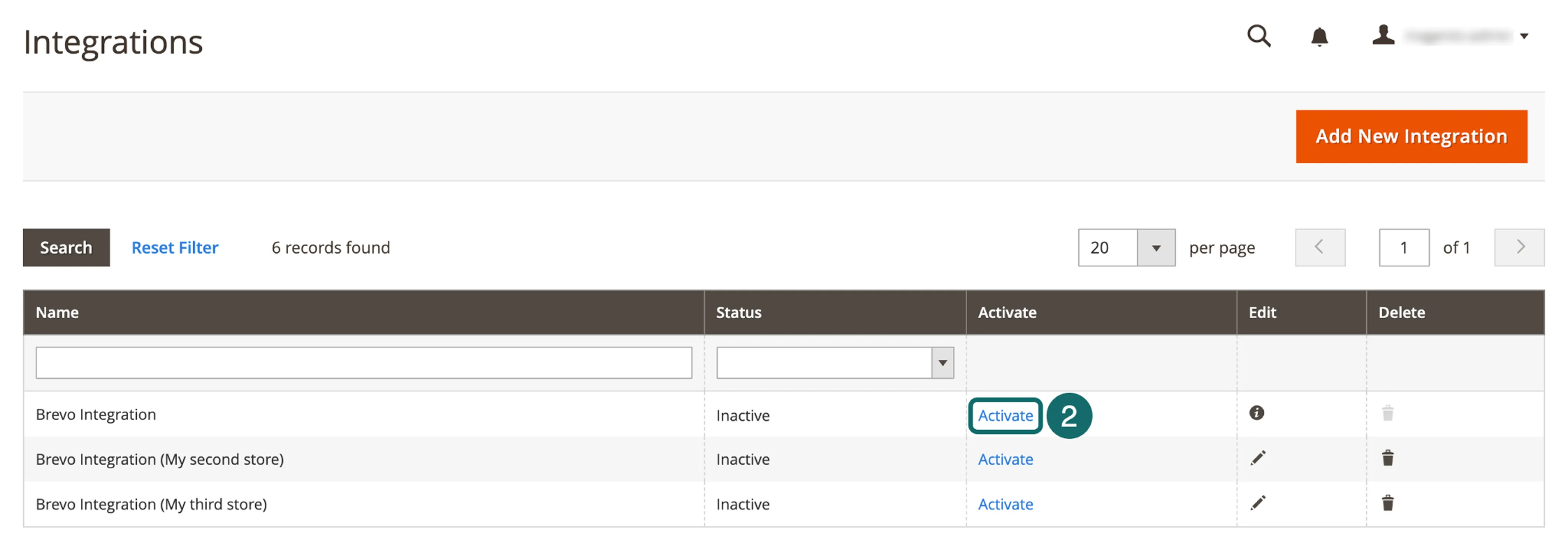
Using an integration through a marketing platform like Brevo is one of the easiest ways to automate order SMS notifications. Instead of connecting Magento to a separate Magento-compatible SMS gateway, you install the plugin, connect your Brevo account, and choose which order events should trigger SMS messages.
Step 1: Install the Brevo plugin for Magento 2
Install the Brevo Magento extension using Composer:
composer require brevo/magento2-extension
php bin/magento setup:upgrade
php bin/magento setup:di:compile
php bin/magento setup:static-content:deploy -f
php bin/magento cache:flush
Alternatively, you can add the free Brevo extension from the Adobe Commerce Marketplace and install it using Adobe's Marketplace workflow.
Step 2: Connect your Brevo account
Open the Brevo Configuration page (Stores > Configuration > Brevo) in your Magento admin.
Paste your Brevo API key into the appropriate field. Save your configuration to connect your Magento store to your Brevo account.
Step 3: Enable SMS notifications
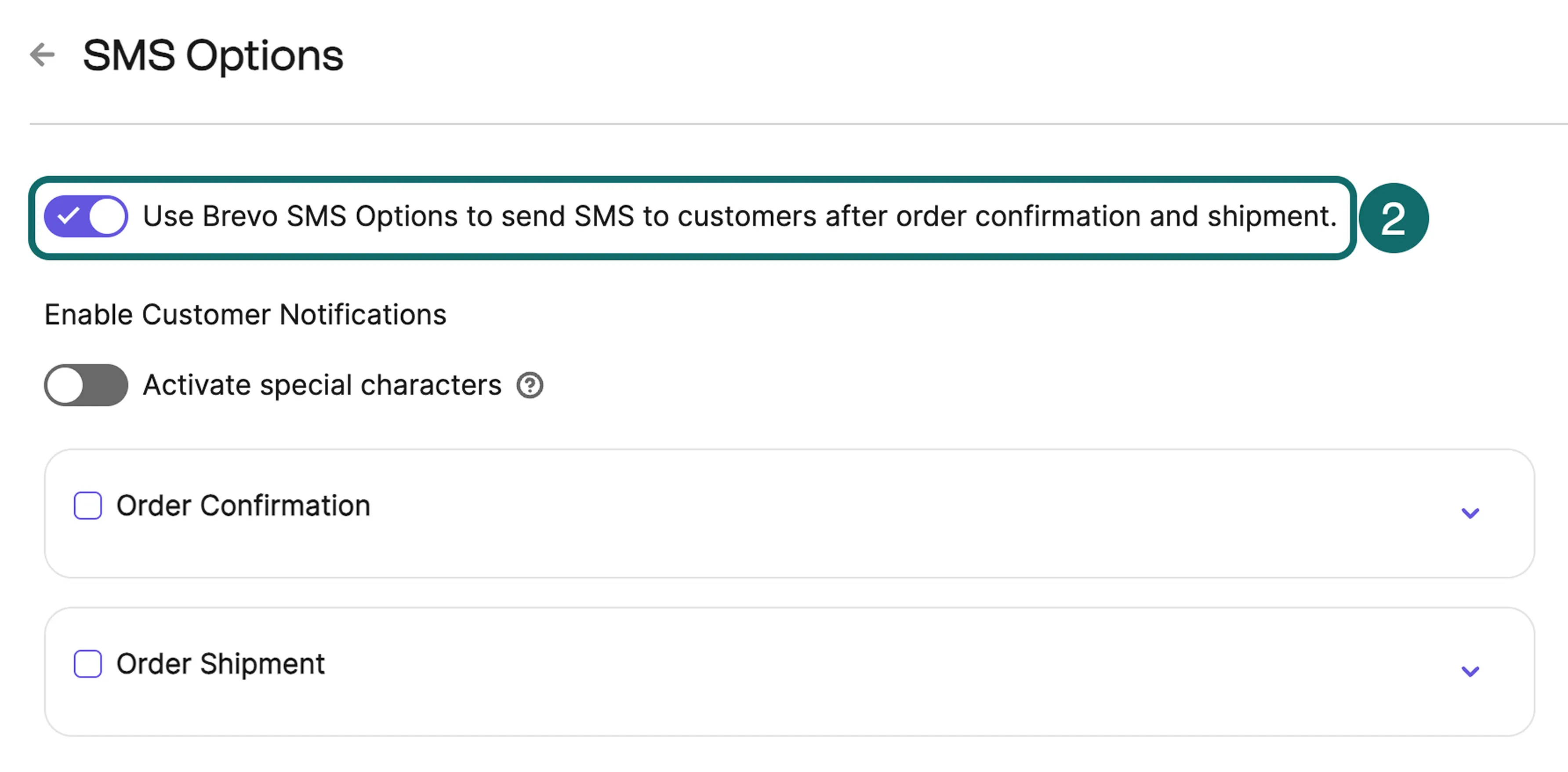
Go to SMS Options and enable Use Brevo SMS Options to send SMS to customers after order confirmation and shipment.
Activating this option allows Brevo to send transactional SMS notifications to customers for supported Magento order events.
Step 4: Choose which order events trigger SMS
Select the order events that should automatically send SMS notifications.
The Brevo plugin supports:
- Order Confirmation SMS
- Order Shipment SMS
Enable one or both depending on the notifications you want customers to receive.
Step 5: Configure your sender name
Choose the sender name customers will see when they receive your SMS.
Brevo supports:
- An alphanumeric sender ID containing 3 to 11 letters, or
- A numeric sender ID containing up to 15 digits.
Most businesses use their brand name so customers immediately recognize who the message is from.
If you send SMS to customers in the United States, your sender number may require A2P 10DLC registration. In many other countries, alphanumeric sender IDs are supported, subject to local carrier requirements.
Step 6: Customize your SMS messages
Write the SMS message customers should receive for each order event.
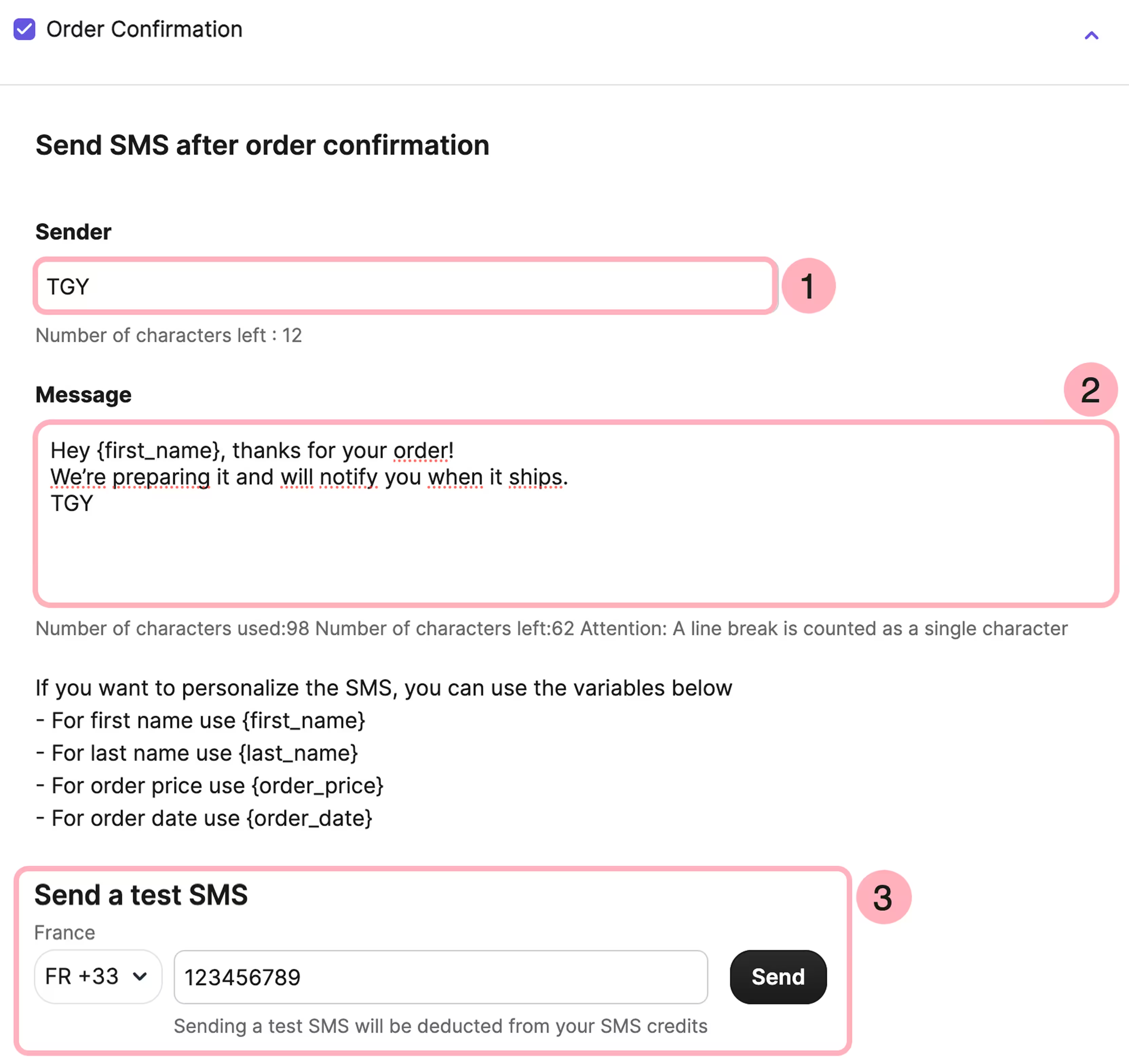
Order confirmation: Hi {firstname}, your {storename} order #{order_id} is confirmed. Total: {total}. We will text when it ships. Reply STOP to opt out.
Order shipment: Your {storename} order #{order_id} has shipped via {carrier}. Track: {tracking_url}. Reply STOP to opt out.
Keep your messages concise so they are more likely to fit within a single SMS.
Step 7: Handle special characters
If your SMS contains emojis or Unicode characters, such as Arabic, Cyrillic, Chinese, Japanese, or other non-Latin scripts, enable Activate special characters in the plugin settings.
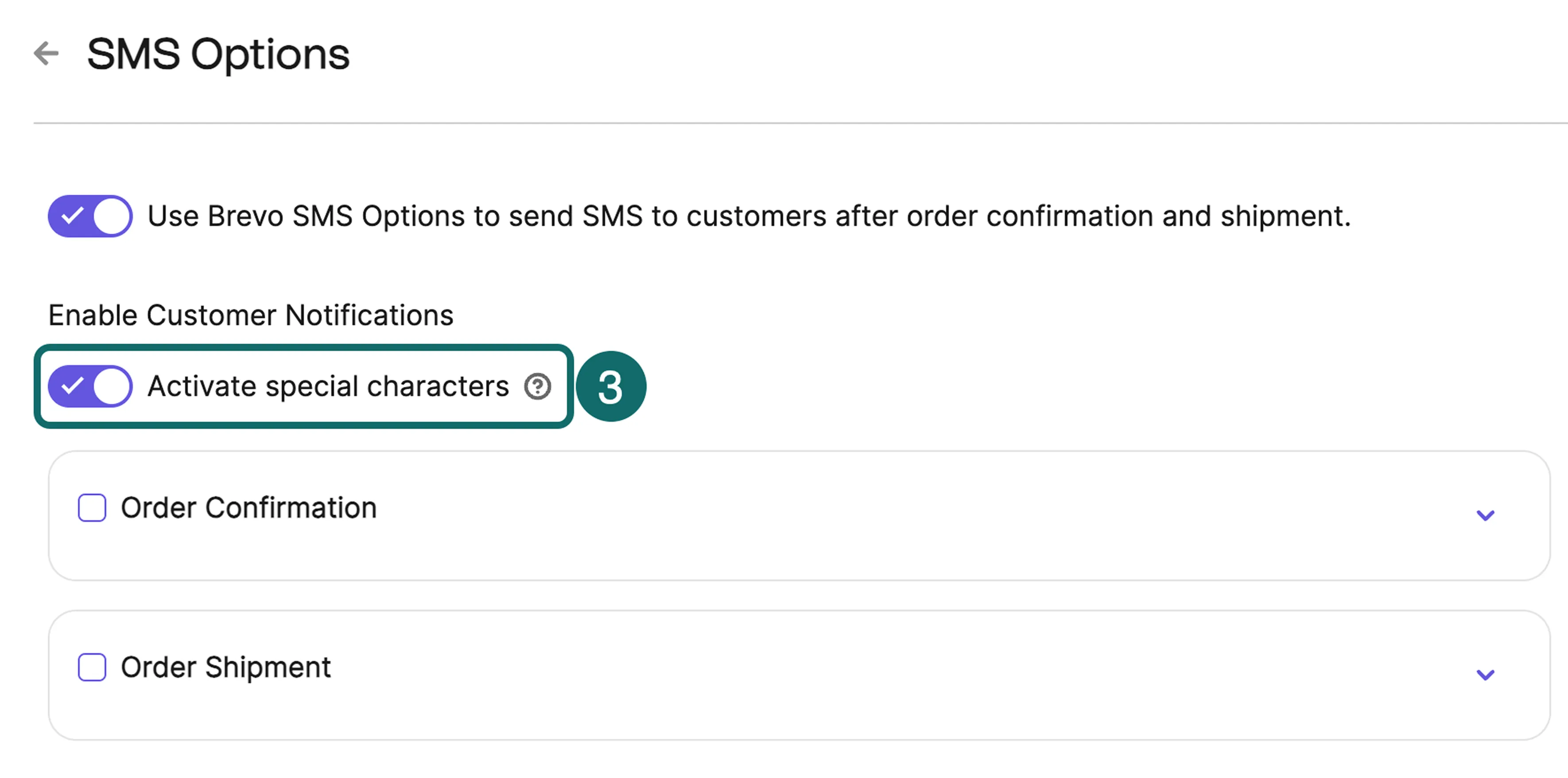
Keep in mind that Unicode messages are limited to 70 characters per SMS segment, compared with 160 characters for standard SMS. Longer messages are automatically split into multiple SMS alerts, which may increase SMS costs.
Step 8: Send a test SMS
Before enabling live notifications, use Send a test SMS to send a message to your own phone number.
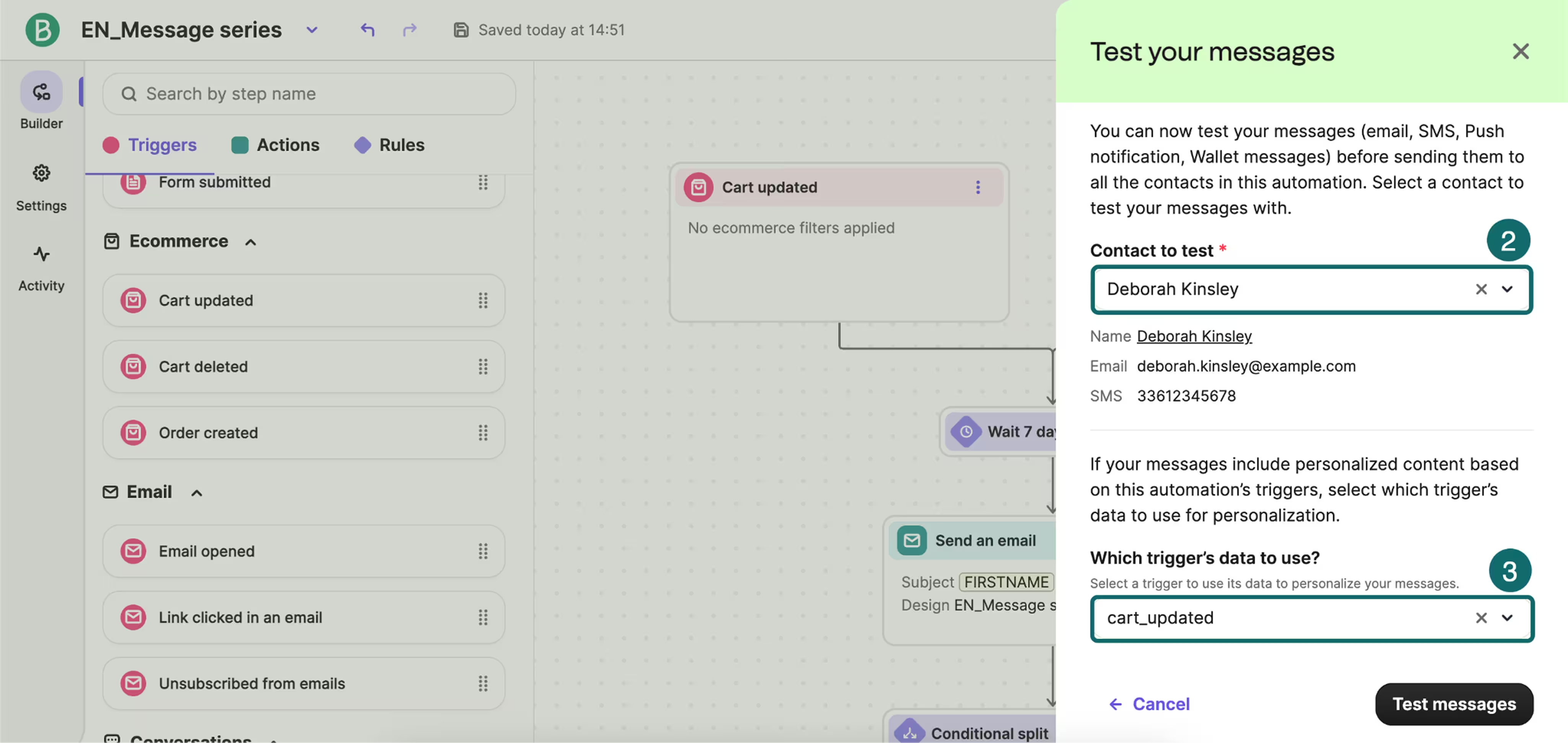
Test SMS messages are deducted from your available SMS credits, so confirm the sender name, message content, delivery status, and other parameters before enabling customer notifications.
Step 9: Flush the Magento cache and place a test order
After saving your configuration, go to System > Cache Management > Flush Magento Cache.
Reload the Magento admin panel, then place a test order to verify that SMS notifications are triggered for the events you have enabled.
If you successfully send your test SMS but live orders do not trigger notifications, verify that Magento cron is running correctly. Review your Magento and plugin logs for any configuration errors.
How to set up Magento order SMS notifications using an extension + gateway (Option 2)
If you choose an extension-and-gateway setup, the overall process is similar regardless of which Magento SMS extension you use. Popular options include MageDelight, Meetanshi, and MageAnts, all of which connect Magento to third-party SMS gateways.
Step 1: Install your preferred Magento SMS extension.
Step 2: Create an account with an SMS gateway such as Twilio, MSG91, BulkSMS, or Plivo.
Step 3: Generate the API credentials provided by your SMS gateway. Establish the connection by entering these credentials in your extension's settings.
Step 4: Once connected, choose which Magento events should trigger SMS notifications.
Every extension supports a slightly different set of triggers, but most let you automate core order updates such as order confirmations, shipment notifications, deliveries, cancellations, and refunds.
Many also support additional events, including invoice generation, credit memo creation, and customer account registration.
Step 5: Customize your SMS templates using dynamic variables such as the customer's name, order number, order total, or tracking information.
Once configured, the extension automatically sends the appropriate SMS whenever the selected event occurs.
How to send SMS notifications to admin (warehouse or store owner notifications)
While customer SMS notifications are about ensuring that shoppers are informed, many Magento merchants need internal SMS alerts so their team can respond to new orders immediately.
In most Magento SMS extensions, admin notifications are configured separately from customer notifications. After installing the extension, do the following:
- Enter the phone number for the store owner or warehouse team
- Choose the order events that should trigger an alert
- Create a short message template
For example, a template could look like:
New order #{order_id} placed. Total: {total}.
Brevo’s official Magento integration primarily supports transactional SMS alerts, such as order confirmations and shipping updates.
If your platform does not support admin SMS notifications, then they require either a Magento SMS extension paired with an SMS gateway (as outlined in Option 2) or a custom workflow.
This setup takes more effort than using a Magento SMS extension, but it gives you greater control over when admin notifications are sent and what information they include.
SMS compliance for Magento order notifications
Most Magento order SMS notifications are transactional messages (i.e., they do not include promotional elements) that help customers track an existing purchase or stay in the loop about refunds and cancellation requests.
In many jurisdictions, transactional messages are treated differently from promotional SMS alerts because the latter are not necessary to fulfill an order. However, that does not mean that compliance requirements do not exist for transactional messages.
Elements of SMS compliance:
- Express written consent
- Opt-out mechanism/honoring opt-outs and Do-Not-Call (DNC) registry, i.e., not sending messages to people who have opted out of commercial communication
- Quiet hours/time restrictions
- Sender identification
- Consent records
- No pre-checked checkboxes
- Clear opt-in disclosure
Other than the above, the following encompass the overarching best practices related to SMS compliance for order notifications:
Keep transactional and marketing SMS separate
Order confirmations, shipping updates, delivery notifications, cancellation updates, and refund alerts fall under transactional alerts, unless the SMS copy contains promotional elements.
For example, can you tell whether this is a purely transactional update or if it includes promotional elements?
“Your order has shipped. Here is 10% off your next purchase.”
The shipping update is transactional, but the discount offer is promotional. Since both types appear in the same text message, the message is subject to consent requirements for marketing SMS.
Beyond legal compliance, having this distinction will make your messaging clearer for customers.
Understand region-specific laws applicable to your customers
If you send SMS messages to customers in the United States, you must comply with the Telephone Consumer Protection Act (TCPA). TCPA violations cost a minimum of $500 per violation and up to $42,792 per violation for DNC list infractions.
In a recent case involving marketing texts to subscribers who had opted out, a fashion brand agreed to a settlement of more than $4.42 million to resolve class-action claims arising from TCPA violations.
The TCPA treats marketing and transactional SMS differently.
Marketing messages are generally subject to stricter consent requirements, whereas different rules typically govern transactional order notifications. Before sending either type of message, make sure your SMS program complies with the applicable TCPA requirements.
If your customers reside in the UK or European region, you will need to comply with the General Data Protection Regulation (GDPR) and ePrivacy rules.
Under GDPR, promotional SMS requires explicit informed consent, but transactional SMS is typically not subject to consent requirements. The logic is that transactional alerts are necessary to perform a contract (between the seller and the customer).
But you cannot bundle marketing and transactional messaging without obtaining consent for marketing messages, among other GDPR-related compliance requirements.
If your transactional message also includes promotional elements and you fail to obtain consent, you will be subject to a level-two penalty under the GDPR. Non-compliance can result in significant regulatory penalties, up to 20 million euros or 4% of a company’s worldwide annual turnover in serious cases.
Check region-specific SMS laws while setting up your campaigns.
Build compliance into your Magento checkout
The checkout page is an ideal place to collect SMS marketing consent.
Add a dedicated SMS opt-in checkbox. Leave it unchecked so customers can actively choose to subscribe. For example, Gymshark has this on their checkout page:
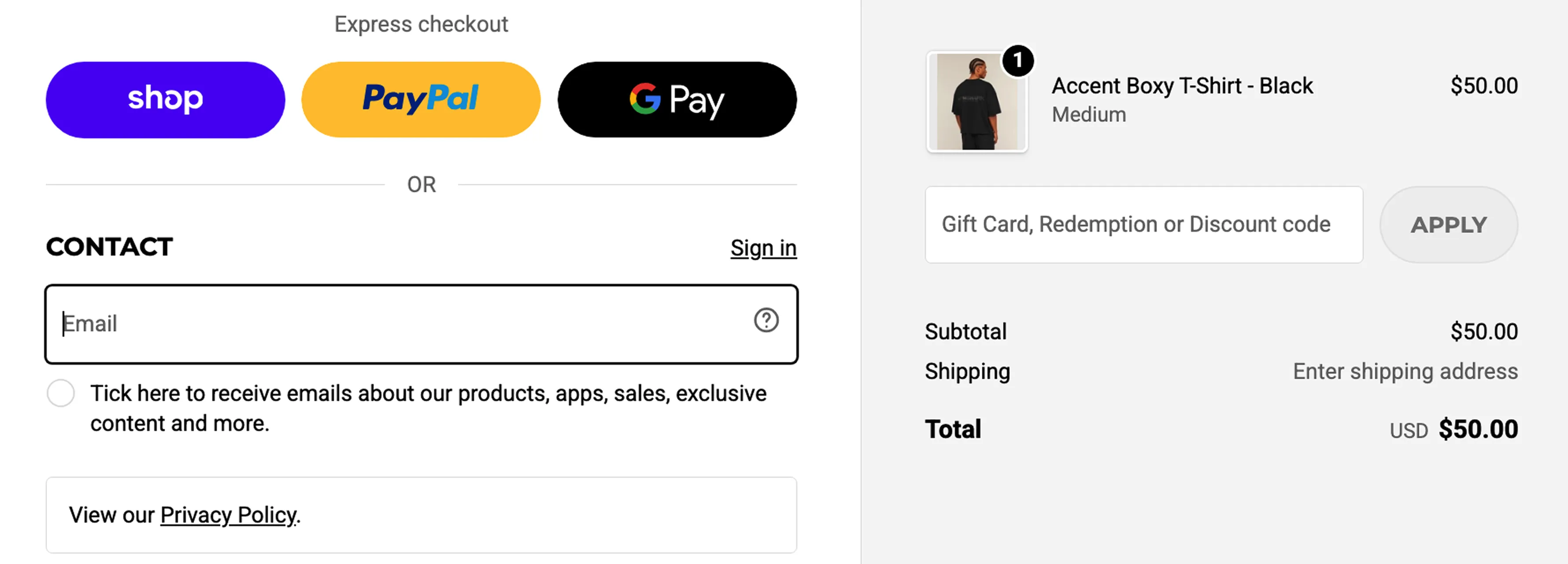
Under the checkbox, it explains what subscribers are signing up for, which is a great strategy for disclosure, and customers will appreciate the transparency.
Are your Magento SMS notifications not working?
If your Magento SMS notifications are not sending as expected, the issue is usually related to your extension configuration, SMS gateway, or Magento itself.
Use the table below to troubleshoot the most common problems related to Magento notifications:
| PROBLEM | POSSIBLE CAUSE | HOW TO FIX IT |
|---|---|---|
| Messages are not sending after setup | Invalid API credentials, insufficient SMS credits, cached configuration | Clear Magento cache, verify your API credentials, and confirm that your SMS provider account has available credits |
| Admin SMS is working, but customer SMS alerts are not | Customer phone numbers are not being collected correctly | Check that your checkout collects customer phone numbers and that your Magento SMS extension is mapped to the customer phone field |
| Special characters appear as “?” | Unicode encoding is not enabled, or there is a mismatch due to copy-pasting across editors | Enable Unicode support in your SMS extension and ensure you use a plain text editor |
| Sender name not displaying | Sender ID is not supported or has not been registered, or if the sender ID string exceeds character limits, or carrier-related issues | Verify that your sender ID is supported and registered for your destination country. For example, US businesses typically use registered A2P 10DLC numbers, while other countries support alphanumeric sender IDs Also check if your sender name is not whitelisted |
| Composer install failing | Repository configuration or version mismatch | Verify your Composer repository configuration and confirm that your Magento version is compatible with the extension you are installing |
| Test SMS works but live orders do not trigger notifications | Magento cron is not running | Check that Magento cron is running correctly; execute bin/magento cron:run |
If issues persist, review your extension logs, Magento logs, and SMS provider logs to identify which part of the notification workflow is failing.
Ready to set up Magento order notifications?
Magento 2 does not include SMS notifications by default, but adding them is straightforward once you choose the right setup.
For most merchants, an integration through platforms like Brevo is the quickest way to get started. At the same time, a Magento SMS extension paired with an SMS gateway offers greater flexibility for more advanced requirements.
Start with order confirmation and shipment notifications, then expand your workflow to include order cancellation and refund alerts as your SMS strategy matures.
If you are ready to get started, install the free Brevo plugin from the Adobe Commerce Marketplace and follow the official Brevo setup guide to configure SMS notifications for your store using Magento, or get a demo!


