If you run a WordPress website and eventually want to start an online store, you can set it up with WooCommerce, an open-source e-commerce platform, with some help from additional plugins or email marketing tools.
It gives you the tools to manage products, orders, customers, payments, and the day-to-day running of your store. But WooCommerce email marketing is more than the emails your store sends after someone places an order.
You should also be able to market your products and drive repeat purchases. That can include newsletters, promotional campaigns, abandoned-cart emails, and other targeted messages.
That is where an email marketing platform can help. To run marketing campaigns and manage subscribers, you will need a WooCommerce email marketing plugin or connected platform.
This guide breaks down what you need to know about WooCommerce email marketing, from the emails WooCommerce sends by default to choosing an email platform and setting up your store with Brevo.
- WooCommerce email marketing: Which emails can it send by default?
- Why does WooCommerce email marketing require a plugin/tool?
- Why WooCommerce emails go to spam, and how to fix it
- Which WooCommerce email marketing tools can you use?
- How much does WooCommerce email marketing cost?
- Which Brevo plugin do you actually need?
- Best practices for WooCommerce email marketing
- How to set up WooCommerce email with Brevo
- Improve your WooCommerce email marketing with Brevo
WooCommerce email marketing: Which emails can it send by default?
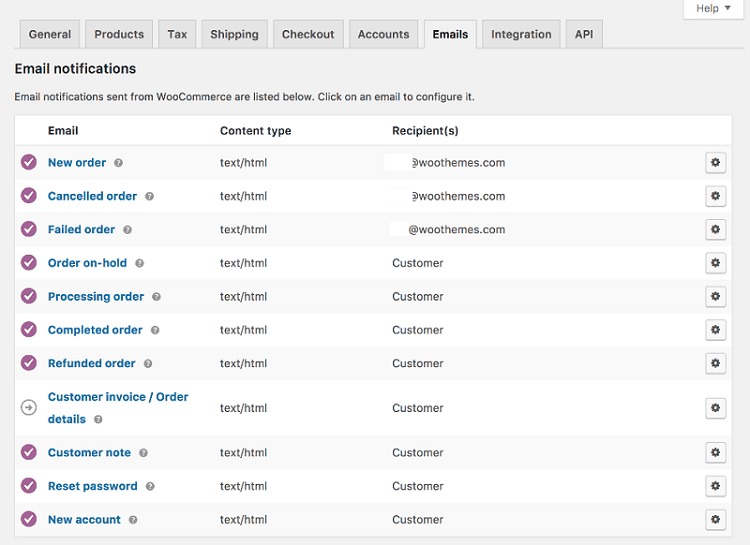
WooCommerce sends built-in transactional emails for orders, payments, refunds, account activity, and other store notifications.
The exact email types can vary with your WooCommerce version and enabled features or extensions. Here are a few examples of email types you can send with your WooCommerce store:
| WooCommerce Email Type | When It Is Sent |
|---|---|
| New order | When a new order is received It is sent to the store’s configured recipients |
| Cancelled order | When an eligible order is canceled |
| Failed order | When an order fails Notifications can go to the store and customer |
| Order on-hold | When a customer’s order is placed on hold |
| Processing order | After payment is received and the order is being processed |
| Completed order | When an order is marked completed |
| Refunded order | When an order is refunded |
| Order details | Sent from the order screen to provide invoice details and a payment link |
| Password reset | When a customer requests a password reset |
| New account | When a customer creates an account on your store’s website |
| Email confirmation | When a customer needs to confirm their account email |
| Abandoned cart recovery (as part of WooCommerce 11.0 as an experimental feature) | When a shopper adds something to the cart but does not complete the purchase |
| Review request | After an eligible order is completed |
The abandoned cart recovery feature is experimental and disabled by default in WooCommerce 11.0. It allows you to send one reminder to an eligible shopper.
You can manage these emails from WooCommerce > Settings > Emails in your WordPress dashboard. From there, you can turn individual notifications on or off and customize the subject line, sender name, and basic email styling.
Barring the experimental abandoned cart automation, these are transactional emails, not a complete email marketing system, since WooCommerce’s built-in email functionality is primarily designed to communicate order and account activity.
For proper WooCommerce marketing automation, along with newsletters, promotional campaigns, and audience segmentation, you will need a dedicated email marketing tool or extension.
Why does WooCommerce email marketing require a plugin/tool?
WooCommerce requires a plugin or connected email marketing platform for features such as newsletters, segmentation, promotional campaigns, and automated marketing emails.
You will need a plugin or external platform for:
Parameter #1: Email marketing formats
Since WooCommerce’s native emails are primarily transactional, if you want to communicate with customers beyond order and account notifications, you will need an email marketing tool to create and send formats such as:
- Newsletters: Include educational content such as industry news or long-form curated content for subscribers, with product information, founder updates, and other educational content.
- Promotional email blasts: Include flash sale announcements, product launches, seasonal offers, and other campaigns you can send to your entire email list.
- Tailored marketing automations: Include targeted campaigns based on customer behavior, such as cart abandonment and sign-ups.
These emails differ from transactional messages because they aim to engage customers and drive sales, not communicate essential order updates.
Parameter #2: Email marketing capabilities
Email format is only part of an email marketing strategy. As your subscriber list grows, you will need tools to manage your audience and create relevant campaigns.
WooCommerce does not provide a full email marketing system out of the box. An email marketing plugin or connected platform can add capabilities such as:
- Segmentation: Group contacts based on purchase history, engagement, customer attributes, or other criteria.
- Advanced customization: Personalize emails with customer or product data and use more flexible email templates.
- Contact management: Store, organize, and manage subscribers and customer contacts in one place.
- Campaign management: Create and send newsletters, promotional campaigns, and other marketing emails.
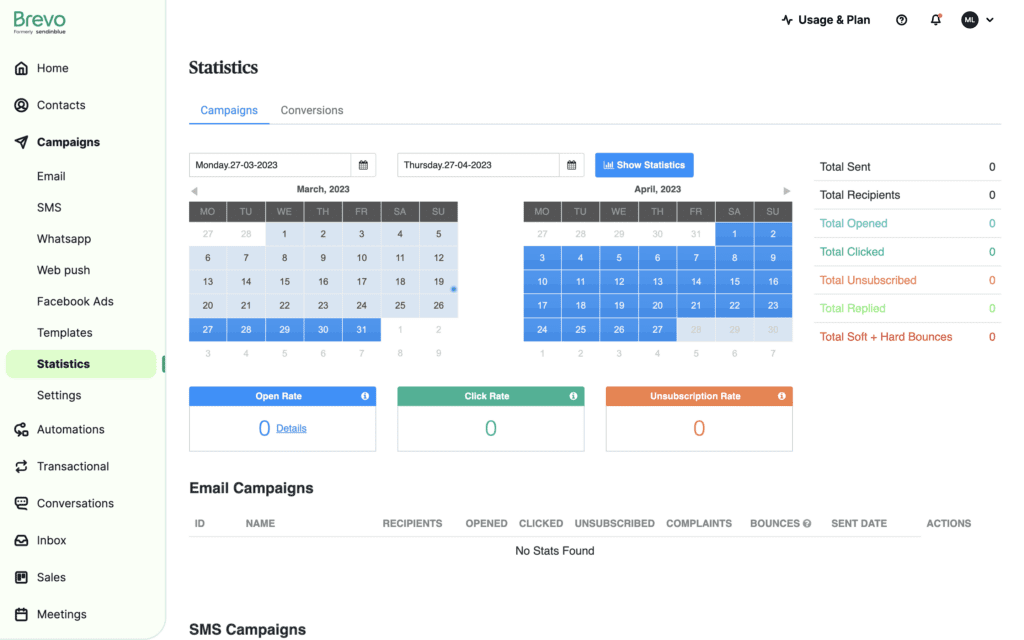
- Performance reporting: Track metrics such as clicks and conversions to understand campaign performance.
But if your WooCommerce store is relying on WordPress’s default mail-sending setup, your transactional email can still run into deliverability problems.
Why WooCommerce emails go to spam, and how to fix it
WooCommerce emails can land in spam when your sending setup lacks proper authentication or relies on infrastructure with a poor sending reputation.
Inbox providers such as Gmail and Yahoo may treat your store’s messages as suspicious. Here’s what happens:
Issue 1: Shared hosting
When WooCommerce needs to send an order confirmation or another notification, it hands the message to wp_mail(), WordPress’s built-in email-sending function. By default, wp_mail() does not send messages through a dedicated SMTP service.
Depending on your hosting configuration, WordPress may ultimately rely on PHP’s mail() function or another server-level mail setup.
Your web host is not necessarily an email-sending service.
Shared hosting can mean your site’s server also sends mail for many other websites. If that infrastructure has a poor reputation or is not configured for email deliverability, your WooCommerce messages can suffer too.
Issue 2: Email authentication issues
Receiving servers use authentication protocols to check whether the email is spam:
- SPF (Sender Policy Framework): Specifies which servers are allowed to send email for your domain.
- DKIM (DomainKeys Identified Mail): Adds a digital signature that helps verify an authorized service sent the message and that it wasn't altered in transit.
- DMARC (Domain-based Message Authentication, Reporting, and Conformance): Tells receiving servers what to do when a message fails authentication and helps protect your domain from spoofing.
In February 2024, Gmail and Yahoo introduced new requirements for bulk senders, including email authentication and easier unsubscribe mechanisms. Even if your WooCommerce store isn't a bulk sender, relying on an unauthenticated server to email customers can hurt deliverability.
Solution: How to fix WooCommerce emails going to spam
Start by moving your store’s transactional emails off your web server.
Then authenticate your sending domain and verify that everything is configured correctly. Here are the steps you can follow:
- Install an SMTP plugin: An SMTP plugin connects WordPress to an email-sending service instead of relying on the server's default mail function. Popular WordPress options include WP Mail SMTP, FluentSMTP, and Post SMTP.
- Connect it to an SMTP service: Your SMTP provider handles the actual delivery of your WooCommerce emails. Brevo, for example, provides an SMTP relay that WordPress can use to send transactional emails.
- Authenticate your sending domain: Add the SPF, DKIM, and DMARC records provided by your email service to your domain’s DNS settings. This tells receiving mail servers that your sending service is authorized to send on your behalf.
- Send a test email to Gmail: Place a test order on your WooCommerce store and check that the confirmation email arrives.
The last step matters because it lets you check what the receiving server actually sees.
Brevo provides an SMTP relay that you can use to send transactional emails from your website. Its WooCommerce plugin can route selected WooCommerce transactional emails through Brevo SMTP while letting you choose which email events Brevo handles.
Which WooCommerce email marketing tools can you use?
WooCommerce email marketing tools fall into two broad categories: plugins that work inside WordPress and marketing platforms that connect to your WooCommerce store.
WordPress/WooCommerce plugins: Keep more of the WooCommerce email marketing workflow inside your store’s dashboard.
External platforms: Connect to WooCommerce, sync data, and give a separate environment for your email marketing.
A small store that wants to send newsletters from WordPress has different requirements compared to a growing e-commerce brand that needs advanced WooCommerce customer segmentation, revenue attribution, or multiple messaging channels.
Evaluate your options around:
- Transactional emails: Can the tool reliably send order and account emails?
- Marketing campaigns: Can you send newsletters and promotional campaigns?
- Email editor: How much control do you have over email design?
- Deliverability: What infrastructure handles sending and authentication?
- Pricing model: Are you paying based on contacts, sends, or other metrics?
- Data location: Where is your customer and marketing data stored?
- Multichannel marketing: Can you reach customers through channels beyond email?
- WooCommerce integration: What customer/order/product data can the tool use?
Here are some WooCommerce email marketing tools you can pick from:
| TOOL | BEST FOR | USP | KEY TRADE-OFF |
|---|---|---|---|
| Brevo Type of tool: Email marketing platform with a WooCommerce plugin | Brands with growing contact lists that want omnichannel marketing | Combines marketing across email, web push, SMS, and WhatsApp in one platform Pricing is based on email volume rather than contact count Drag-and-drop email editor and customizable templates | Some advanced capabilities depend on the plan |
| MailPoet Type of tool: WordPress/WooCommerce plugin | Small stores that want email inside WordPress | WooCommerce-focused email marketing plugin | Less suited for stores that want to scale beyond email campaigns |
| AutomateWoo Type of tool: WooCommerce plugin/extension | Stores that want comprehensive WooCommerce email automation | Trigger/rule/action workflows built directly around WooCommerce events | Not a full-scale email marketing platform |
| FunnelKit Type of tool: WordPress/WooCommerce plugin suite | Stores wanting a WordPress-native marketing automation + CRM setup | Self-hosted customer profiles, segmentation, automations, broadcasts | Less suited if you want a platform that manages marketing and transactional messaging outside WordPress |
| Klaviyo Type of tool: Marketing platform + WooCommerce integration | Stores that need advanced e-commerce marketing and analytics | Real-time WooCommerce data for segmentation, cross-channel flows, and deeper customer insights | Less focused on keeping the entire workflow inside WordPress Might be feature bloat for many stores |
| Mailchimp Type of tool: Email marketing platform + WooCommerce integration | Stores that want a mature email platform with predictive insights | Combines WooCommerce data with insights like purchase likelihood, alongside segmentation | WooCommerce and Mailchimp remain separate products |
Here is a deep dive into each of the above tools:
Option 1: Brevo
Brevo is useful when email is not the only channel you plan to use. Its WooCommerce integration can bring store data into Brevo, while the platform supports marketing and transactional email alongside channels such as SMS, WhatsApp, and push.
Brevo’s paid plans are primarily structured around monthly email send volume. Contact-storage limits vary by plan.
Option 2: MailPoet
MailPoet removes much of the setup required to connect a separate email platform.
You can build newsletters, create signup forms, segment subscribers, and send post-purchase emails from the same dashboard where you manage your store.
MailPoet has its own MailPoet Sending Service, but it also supports other sending methods, including SMTP providers. You can use this tool without configuring a separate SMTP provider.
Option 3: AutomateWoo
AutomateWoo is built around WooCommerce events so that you can trigger workflows based on purchases, subscriptions, abandoned carts, and other customer activity. You control what happens when a specific store event occurs with its trigger, rule, and action system.
The WordPress-native architecture keeps the workflow closely tied to your store.
Option 4: FunnelKit
FunnelKit keeps your email marketing and customer data closely tied to your WordPress store.
Its automation tools include contact profiles with purchase history and engagement data, behavior-based segmentation, automated workflows, broadcast campaigns, and analytics.
FunnelKit also offers WooCommerce conversion tools such as checkout customization, upsells, and order bumps, alongside its marketing automation features.
Option 5: Klaviyo
WooCommerce lists Klaviyo as a preferred marketing automation partner.
Klaviyo becomes more relevant as your customer data and marketing programs get more sophisticated. Its WooCommerce integration can bring events such as the following into Klaviyo to build highly personalized automation flows:
- Viewed product
- Started checkout
- Fulfilled order
Klaviyo also provides e-commerce analytics and revenue-related reporting, giving merchants more ways to connect marketing activity with store performance.
Option 6: Mailchimp
Mailchimp works as a separate marketing layer on top of WooCommerce.
Once you connect your store data, you can use customer and purchase information for targeted WooCommerce email campaigns. Beyond campaigns and automations, eligible accounts can use predictive e-commerce insights for personalized customer journeys.
The important distinction is that your WooCommerce store and Mailchimp account remain separate, so you are adding an external marketing platform rather than extending WooCommerce’s native email system.
How much does WooCommerce email marketing cost?
WooCommerce email marketing can be free to start, but costs change depending on how the platform you choose charges your store (email volume vs. contacts/active profiles).
WordPress plugins can use a subscription or license model, and you may also need to pay separately for email delivery.
Brevo, Klaviyo, MailPoet, and FunnelKit offer ongoing free options.
Mailchimp offers both a free plan and a limited free trial of certain paid plans.
AutomateWoo uses a paid license with a money-back guarantee.
Brevo primarily uses email send volume to determine its paid plan tiers. Its free plan includes 300 email sends per day, while paid plans let you choose a higher monthly sending volume. You can use the same email credits for marketing and transactional emails.
Mailchimp takes a contact-based approach: your plan is tied to the number of contacts you store, alongside limits on monthly sends. This means your bill can increase as your database grows, even if you do not significantly increase your sending volume.
Klaviyo prices its email plans around active profiles. Like with Mailchimp, the size of your customer database can affect what you pay, rather than only the number of emails you send.
WordPress plugins use a different model. Depending on the plugin, you may pay for a monthly subscription or annual license. Some also bundle email delivery into the product, while others require you to connect a separate sending service.
WooCommerce, for example, lists MailPoet with a free sending allowance, alongside other email and SMTP providers with their own limits and pricing.
Then there’s SMTP. If your plugin does not handle WooCommerce email delivery itself, you may need a separate SMTP or transactional email provider. That creates two costs to consider: the WordPress plugin and the service that actually sends your emails.
The takeaway here is to check what the provider charges for and how that cost will change as your store scales.
Which Brevo plugin do you actually need?
If you are running WooCommerce on WordPress, use the Brevo for WooCommerce plugin to connect your store to Brevo and sync supported customer, product, and order data.
The separate Brevo WordPress plugin is intended for broader WordPress email marketing needs.
| PLUGIN | BEST FOR |
|---|---|
| Brevo for WooCommerce | Connecting your WooCommerce store to Brevo, syncing supported customer, product, and order data, collecting marketing consent at checkout, and sending WooCommerce transactional emails |
| Brevo (Email, SMS, Web Push) | General WordPress email marketing |
For a WooCommerce store, you can start with Brevo for WooCommerce.
If your WordPress site also collects subscribers outside the WooCommerce checkout, you may need the WordPress plugin as well.
A few integration limitations to know before you connect your store:
- The WooCommerce integration syncs data one way. Information flows from WooCommerce to Brevo, but changes made in Brevo do not update your WooCommerce store.
- Contact deletions or blocklisting in WordPress are also not reflected in Brevo.
- Custom attributes are not supported through the native WooCommerce integration.
The above limitations do not prevent you from using Brevo for WooCommerce email marketing, but keep them in mind when choosing a plugin.
Best practices for WooCommerce email marketing
Effective WooCommerce email marketing uses your customer and order data to send relevant messages throughout the customer journey.
This means segmenting your audience, personalizing campaigns, following up after purchases, and keeping your transactional and marketing emails separate. Here are the best practices to follow:
WooCommerce email best practice #1: Use WooCommerce customer data
Your WooCommerce store already contains useful customer data. Use the following variables to build detailed segments:
- Order history
- Products and categories browsed
- Total spend
- Purchase frequency
As customers shop, their store activity can inform which segments they belong to and which campaigns are relevant.
A first-time buyer should not receive the same emails as a repeat customer. Create customer segments for first-time purchasers, repeat purchasers, high-value customers, and customers who haven't bought from you recently and may need reactivation.
WooCommerce email best practice #2: Set up a post-purchase email strategy
The customer journey does not end at checkout. Use the time after a purchase to deepen the relationship, provide product education, recommend cross-sells, and encourage reviews.
Timing and messaging for your post-purchase campaigns should depend on what the customer bought and what makes sense for that product.
WooCommerce email best practice #3: Use product data in your emails
WooCommerce gives you access to product-level information that can make campaigns more relevant. Use product attributes and categories purchased or browsed to build personalized recommendation blocks in your emails.
This is more useful than sending the best sellers to your entire list.
WooCommerce email best practice #4: Keep transactional and marketing emails separate
Order confirmations and shipping updates serve different purposes than promotional campaigns.
More than that, compliance requirements and consent mechanisms may also differ depending on which legislation applies to you, such as GDPR for the EU region and CAN-SPAM for the USA.
Do not include marketing content in order updates; keep the distinction clear to meet compliance requirements.
WooCommerce email best practice #5: Clean email list regularly
A growing WooCommerce store can accumulate inactive contacts, unsubscribes, and dormant customers that no longer engage. Regularly review and clean your email list using re-engagement or suppression rules to avoid sending campaigns to contacts who aren't engaging.
A smaller, engaged audience is more profitable than a large but inactive email list.
WooCommerce email best practice #6: Do not write deceptive subject lines
Your email subject line has one job: give customers a reason to open. Make it specific to the email rather than relying on manufactured urgency.
Also, utilize the preview text to reel the subscriber in rather than repeating the subject line.
WooCommerce email best practice #7: Test the entire path to purchase
Before sending the email to the relevant segment, do a test send. Check product links, prices, formatting, discount codes, images, and CTA buttons across devices.
A campaign email can look perfect in an email editor and still be warped in a subscriber’s inbox.
How to set up WooCommerce email with Brevo
You can connect WooCommerce to Brevo to sync customer and store data, send marketing campaigns, and route transactional emails through Brevo. The WooCommerce store + Brevo setup involves six main steps:
Step 1: Install the Brevo plugin for WooCommerce and connect your store
Step 2: Sync your contacts and e-commerce data
Step 3: Configure transactional email sending
Step 4: Authenticate your sending domain
Step 5: Create your first email campaign
Step 6: Test your emails before sending
The setup is straightforward, but a few configuration mistakes can cause duplicate automations or deliverability issues. Here’s a breakdown of each step and how to avoid common setup mistakes:
Step 1: Install the Brevo plugin for WooCommerce and connect your store
Common mistake: Not whitelisting the relevant Brevo domain and IP ranges on your server firewall or not clearing your WordPress cache before installation
Start by installing the Brevo plugin for WooCommerce from your WordPress dashboard.

Open the Brevo plugin settings in WordPress and connect it to your Brevo account.

Once connected, log in to your Brevo account and authorize the connection.
Step 2: Sync your contacts and e-commerce data
Mistake: Importing every WooCommerce customer as a marketing subscriber without checking for consent.
From the integration settings, activate the ‘sync your store contacts to Brevo’ option and choose the Brevo list where contacts should be stored.

When contact syncing is enabled, WooCommerce also syncs product, order, customer, and category data. The Brevo tracker tracks activity such as product views and cart updates.
You can also manually sync your data again as an added verification step to ensure all the relevant contacts have been added.
Step 3: Configure transactional email sending
Mistake: Sending the same transactional email through both Brevo SMTP and WooCommerce. Configure the sending path accordingly to avoid duplicate messages. Brevo lets you choose which events it handles; if you don't select an event, WooCommerce sends it directly.
To have Brevo send your WooCommerce transactional emails, go to SMTP for transactional mailing in the plugin settings. Then select which WooCommerce email events Brevo SMTP should handle.

You can choose between Brevo templates and WooCommerce’s default templates.
Step 4: Authenticate your sending domain
Mistake: Leaving domain authentication until after you start sending, or activating only the essential deliverability parameters and not all of them.
Before sending marketing or transactional emails at scale, authenticate the domain you will use as your sender in Brevo.
This verifies your domain and helps signal to inbox providers that Brevo is authorized to send emails on your behalf.
Step 5: Create your first email campaign
Mistake: Treating your entire WooCommerce customer list as one marketing audience. Start with a relevant segment instead.
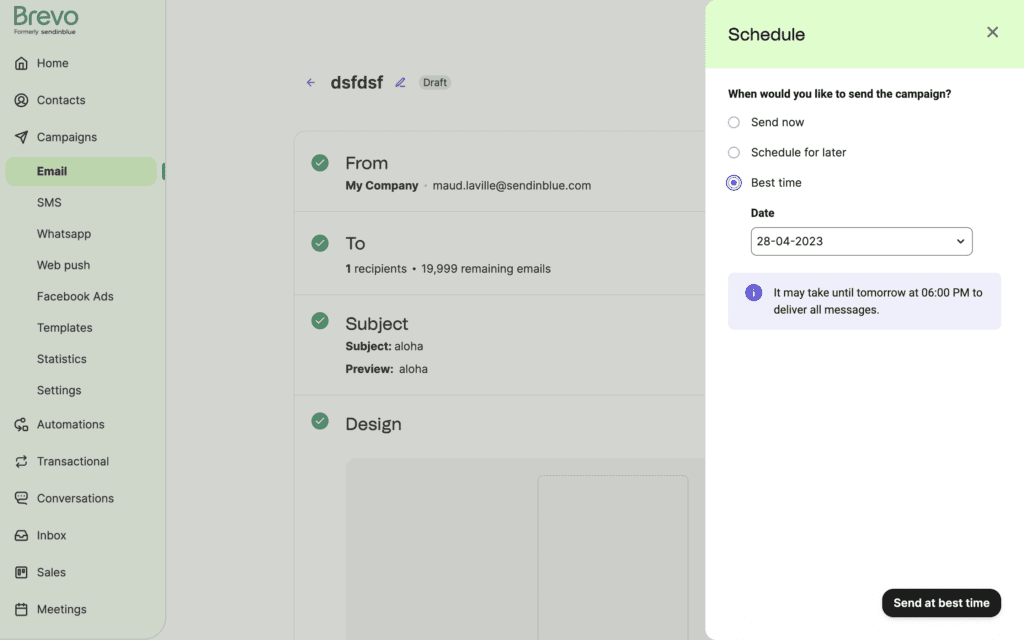
Once your contacts and sending setup are ready, create a campaign in Brevo. Use your synced WooCommerce data to select the relevant audience and personalize the campaign where appropriate.

Brevo specifically supports using WooCommerce order history and customer behavior for targeted campaigns and dynamic segments.
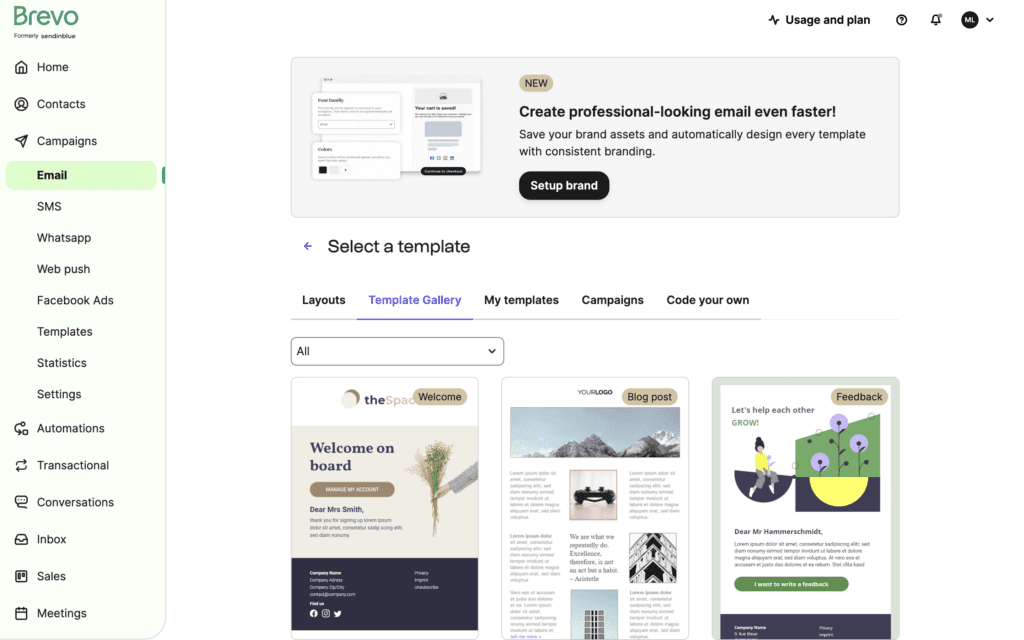
Use the drag-and-drop email editor to create your WooCommerce emails.
H3: Step 6: Test your emails before sending
Common mistake: Testing only the campaign itself. If you use Brevo for transactional emails too, test that flow separately so you do not discover a routing problem after a real customer places an order.
Send a test before launching your campaign. Check the sender information, links, product details, images, buttons, and mobile rendering.
If you have configured transactional sending through Brevo, also place a test WooCommerce order and confirm that the expected transactional email is delivered through the intended sending route.
Improve your WooCommerce email marketing with Brevo
Brevo can extend WooCommerce email marketing beyond native transactional emails with marketing campaigns, segmentation, automation, and additional messaging channels.
Once your store starts generating customer and order data, email becomes another way to bring people back to your store, not just a way to confirm that an order went through.
The tools you choose determine how much of that data you can actually use and how easily you can scale your email program.
You also do not need to build everything at once.
Start with reliable delivery and the emails your customers actually need. Then add the campaigns and email automations, along with other marketing channels you might need.
Build your WooCommerce store’s marketing campaigns with Brevo in minutes